Publish and visit your website after activating hosting
Open your shared-hosting subscription in NewCP, upload files, install an application or deploy from GitHub, then visit your website address.
Applies toFor shared-hosting subscriptions. Choose the publishing method that fits your project; you do not need to follow all three.
On this page
Choose your publishing method
- Have HTML, CSS, images or built frontend files? Use file upload.
- Want WordPress or nopCommerce? Use application installation.
- Keep your project on GitHub and want to fetch, build and release it? Use GitHub deployments.
Activate hosting and open your website
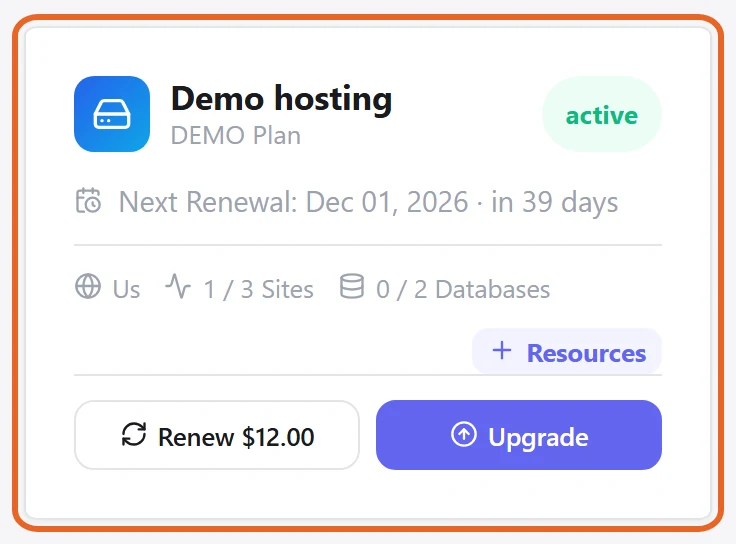
- Once your shared-hosting subscription is active, find its card in the CP customer centre and click the card itself to enter that subscription’s management panel.
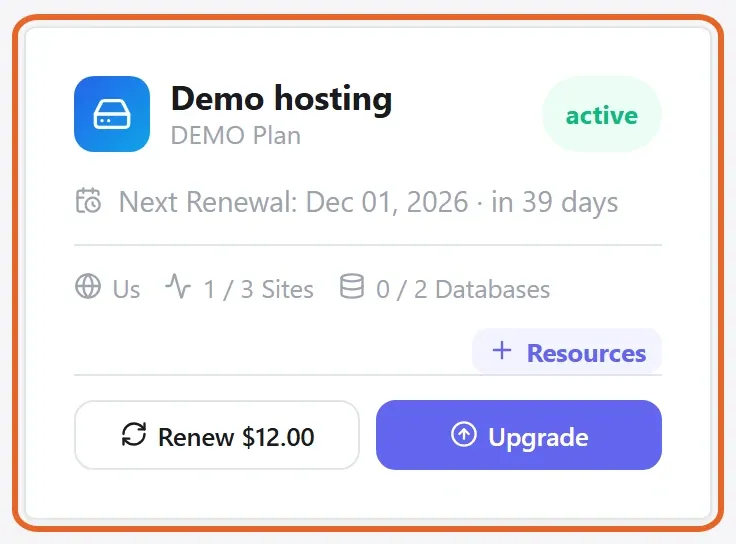
Figure 1: Click the active hosting subscription card itself to enter its panel. Demo subscription shown. View full-size image - In NewCP, check the selected subscription and find its website in Sites. Use the website provided with the subscription for your first release; creating an additional site is not required.
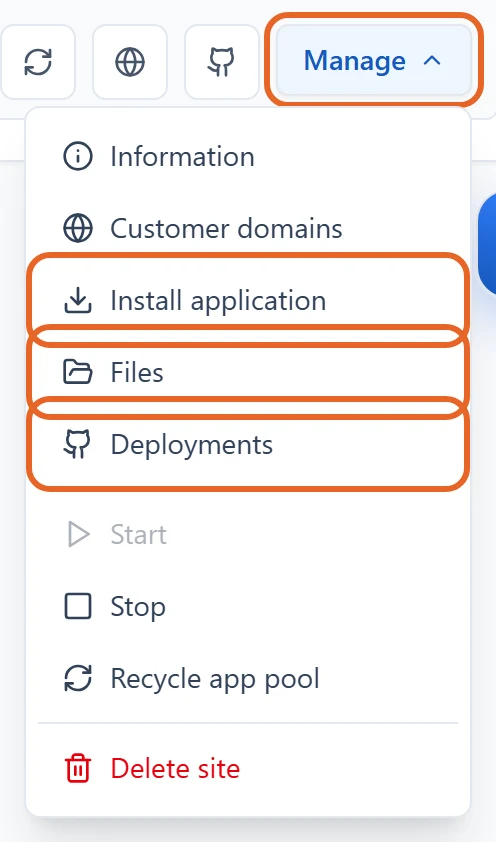
- Note the access address in the website information and open its Manage menu. Follow one of the methods below.
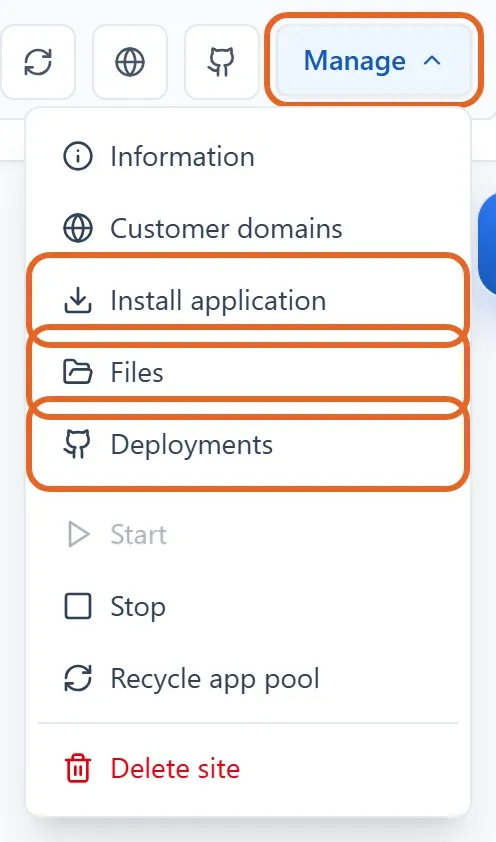
Figure 2: Use the existing website and choose a publishing method from Manage. Demo website shown. View full-size image
Option 1: Upload existing website files
- Choose Manage → Files and confirm the directory belongs to the intended website.
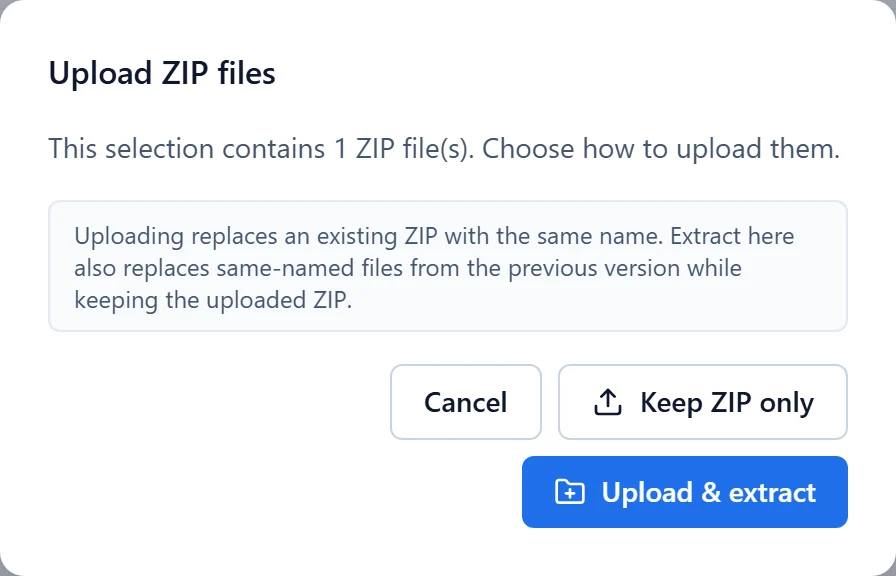
- Select Upload. For a folder, prepare a ZIP and use the upload or extraction options to place its contents in the site directory.
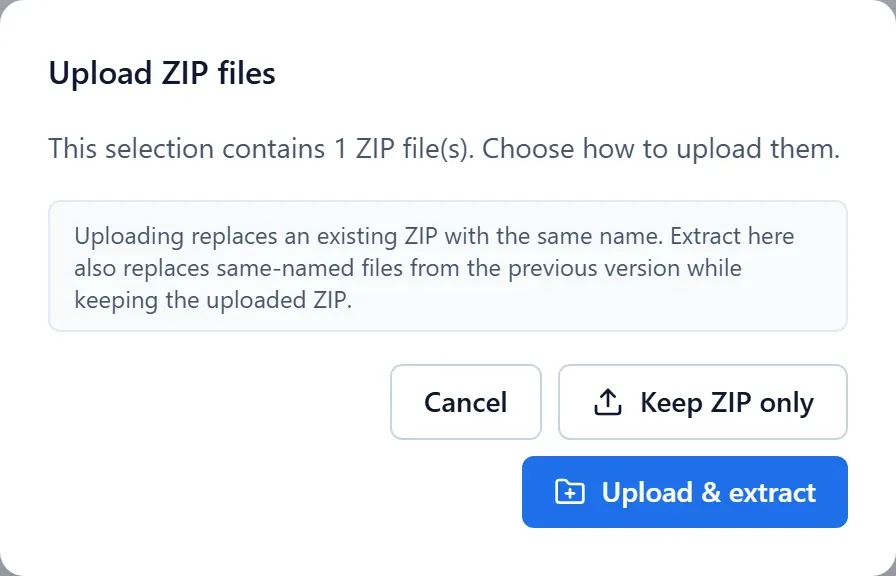
Figure 3: For a ZIP release, review whether to keep or extract it in the selected website folder. Demo selection; nothing uploaded. View full-size image - For a static website, upload ready-to-serve files or build output. For example, index.html and its assets must have the expected relative paths, without an extra enclosing project folder.
- Open the website address after uploading. Projects needing Node.js or .NET also need the relevant runtime configuration; uploading source alone does not start an application.
Option 2: Install an application
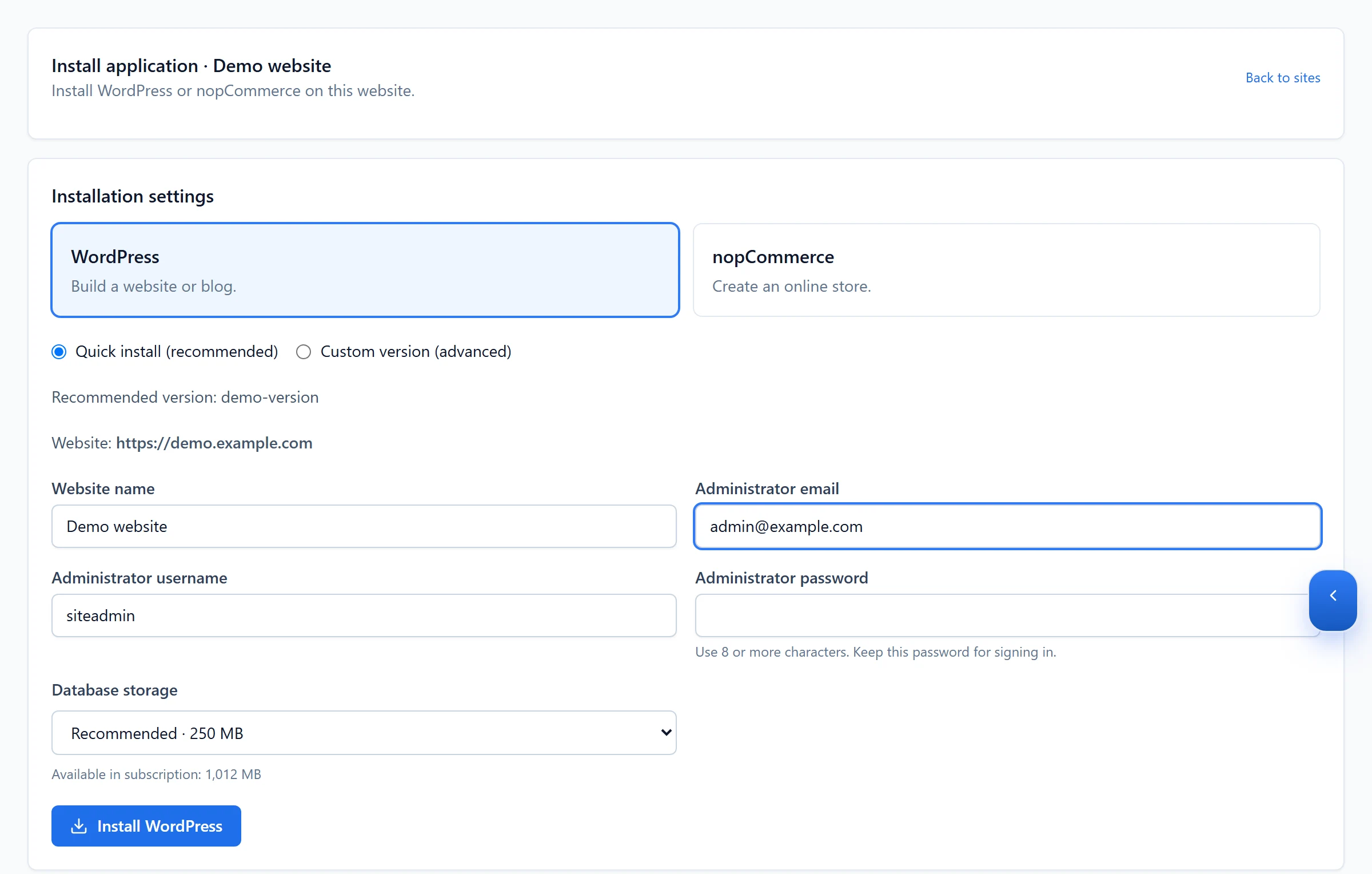
- Choose Manage → Install application, select WordPress or nopCommerce and review the available installation sources.
- Complete the requested website, administrator and database-capacity fields. Back up existing content before accepting the replacement warning and submitting.
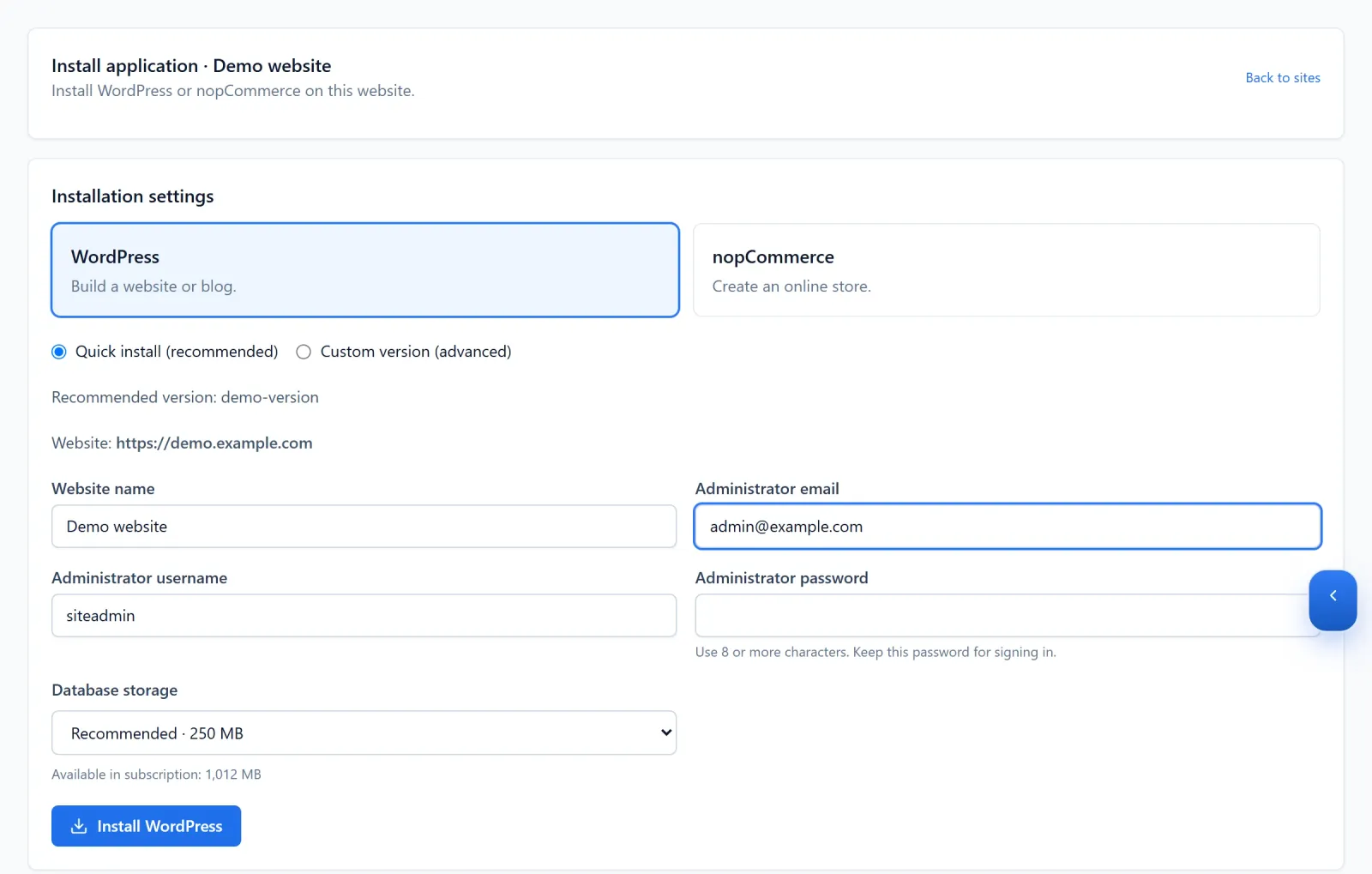
Figure 4: Application installation asks for website, administrator and database settings. Demo fields and version shown; no installation performed. View full-size image - Monitor progress. If setup is required, choose Show setup details and use the temporary access credentials to open Open setup wizard.
- Finish the application wizard, return to the panel and select I finished setup — verify and clean up. Test both the homepage and administration login.
Option 3: Deploy from GitHub
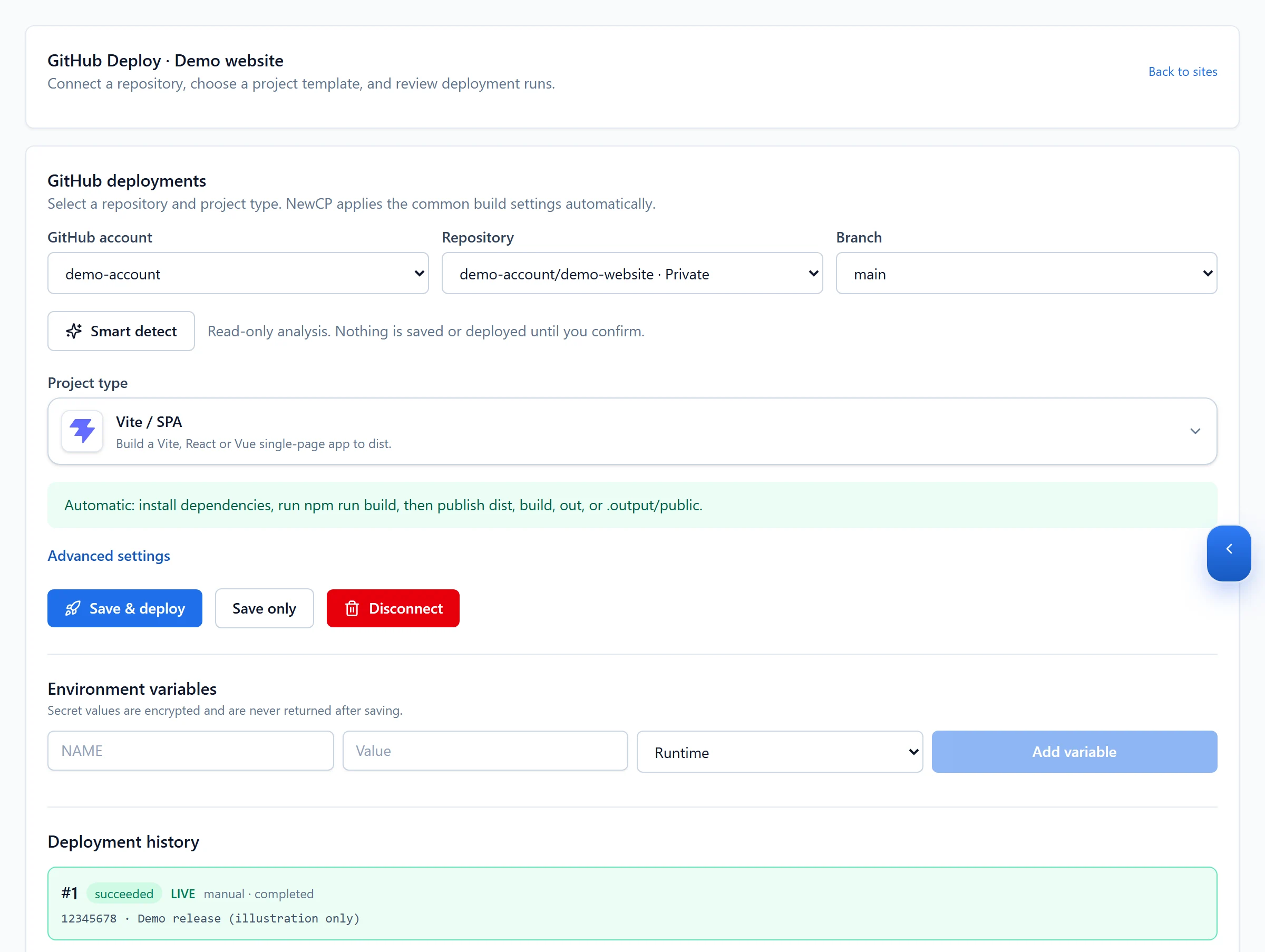
- Choose Manage → Deployments, connect GitHub and authorise the intended repository. Select the account, repository and branch.
- Choose a template or use Smart detect. Review the project directory, install and build commands, output directory or startup settings, and add required environment variables.
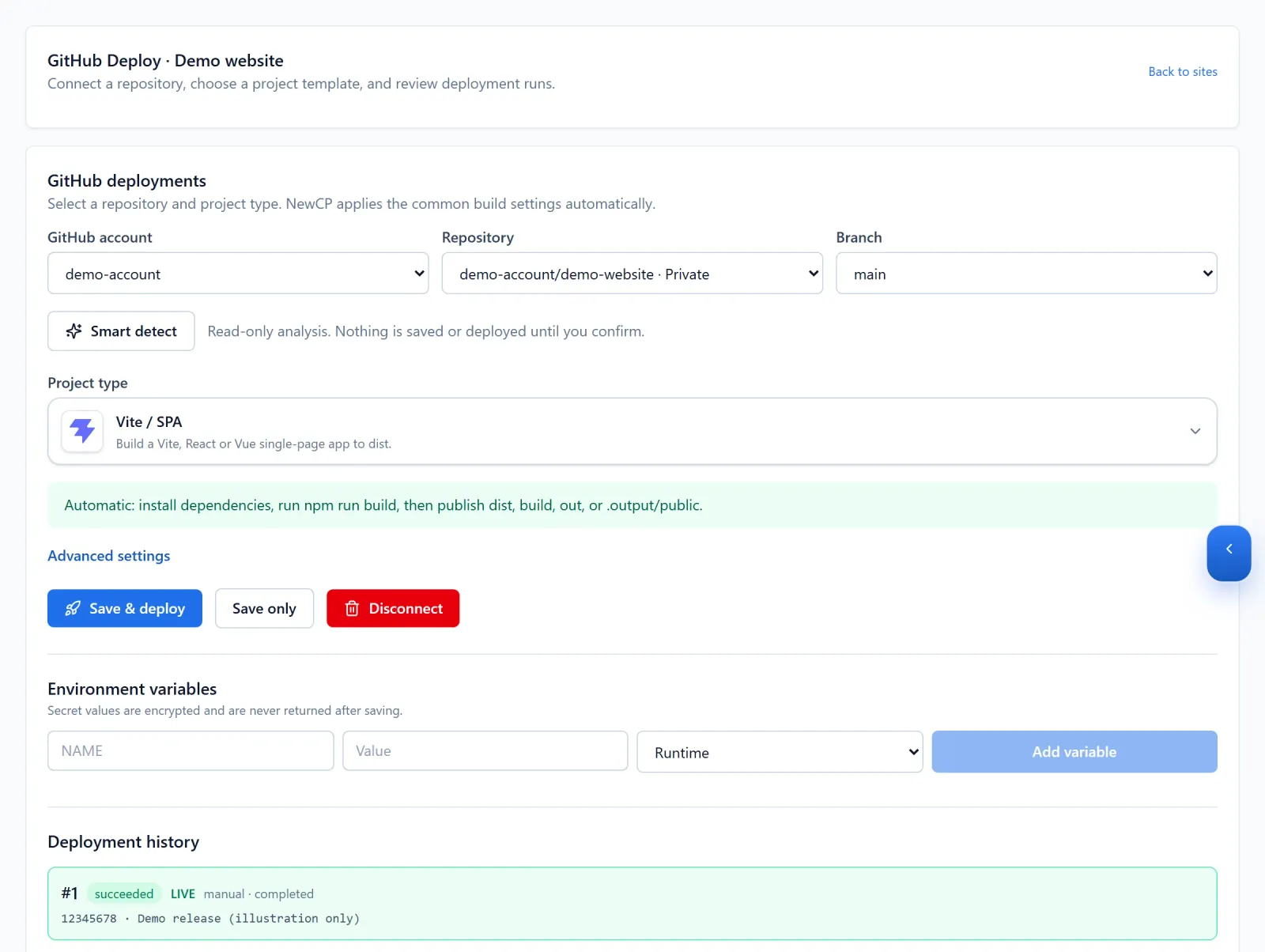
Figure 5: For GitHub publishing, review the repository, branch and project type before deploying. Configuration and run history are illustrative demo data. View full-size image - Save the configuration and deploy. Review the run status and logs, then open the website address and verify that it shows this release.
Visit your published website
- Start with the address shown by the panel and test the homepage, images and internal links. An upload or a successful checkout alone does not confirm the application works.
- For your own domain, open Customer domains and configure the DNS target and certificate shown by the panel. A custom domain is a subsequent configuration step, not a prerequisite for the first release.
If you get stuck
- If the subscription is ready but its website is missing, check the account and selected subscription. Contact customer service or open a ticket with the subscription reference and status instead of buying again or creating resources to work around it.
- For a default page or 404, check the upload directory, entry file and deployment result. For a failed build, retain the failed stage and error.
- Tell support which publishing method you used, the website address and the step that failed. Include the error or a screenshot, without passwords or secret environment values.