Install WordPress or nopCommerce
Check the site, database capacity and replacement warning before completing setup.
Applies toFor supported application installations on your plan and resource node. Available versions and methods are shown by the UI.
On this page
Before you start
- After activating shared hosting, select the subscription’s website in NewCP. Download any existing files you need to retain before installation replaces content.
- Confirm the database capacity required and your right to use any custom application package.
Follow these steps
- From the intended website’s Manage menu, open Install application and select WordPress or nopCommerce.
- Review the available sources. For a preset install, fill in the requested website, administrator and database-capacity fields. For a custom ZIP, upload the application package required by the page.
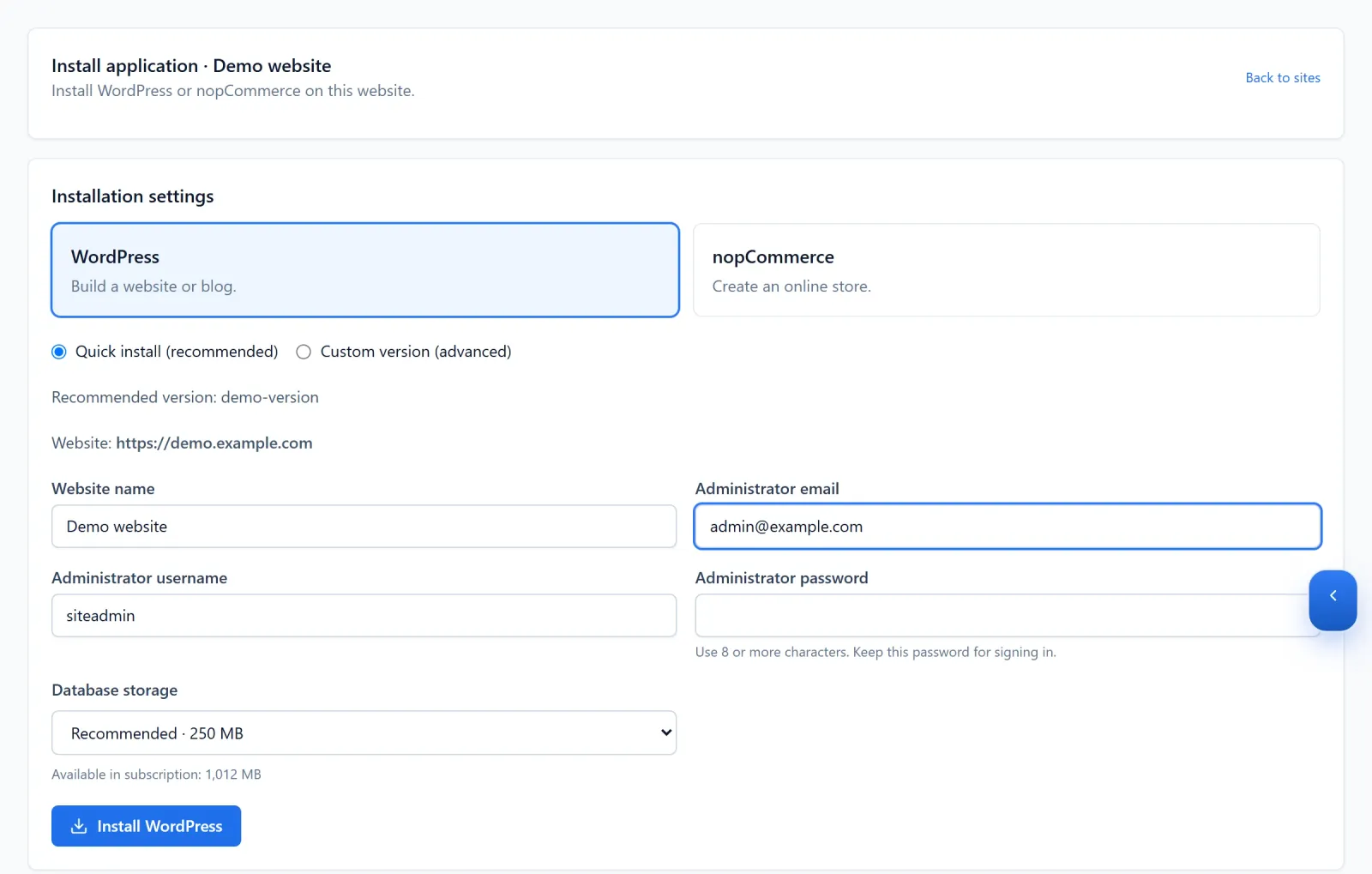
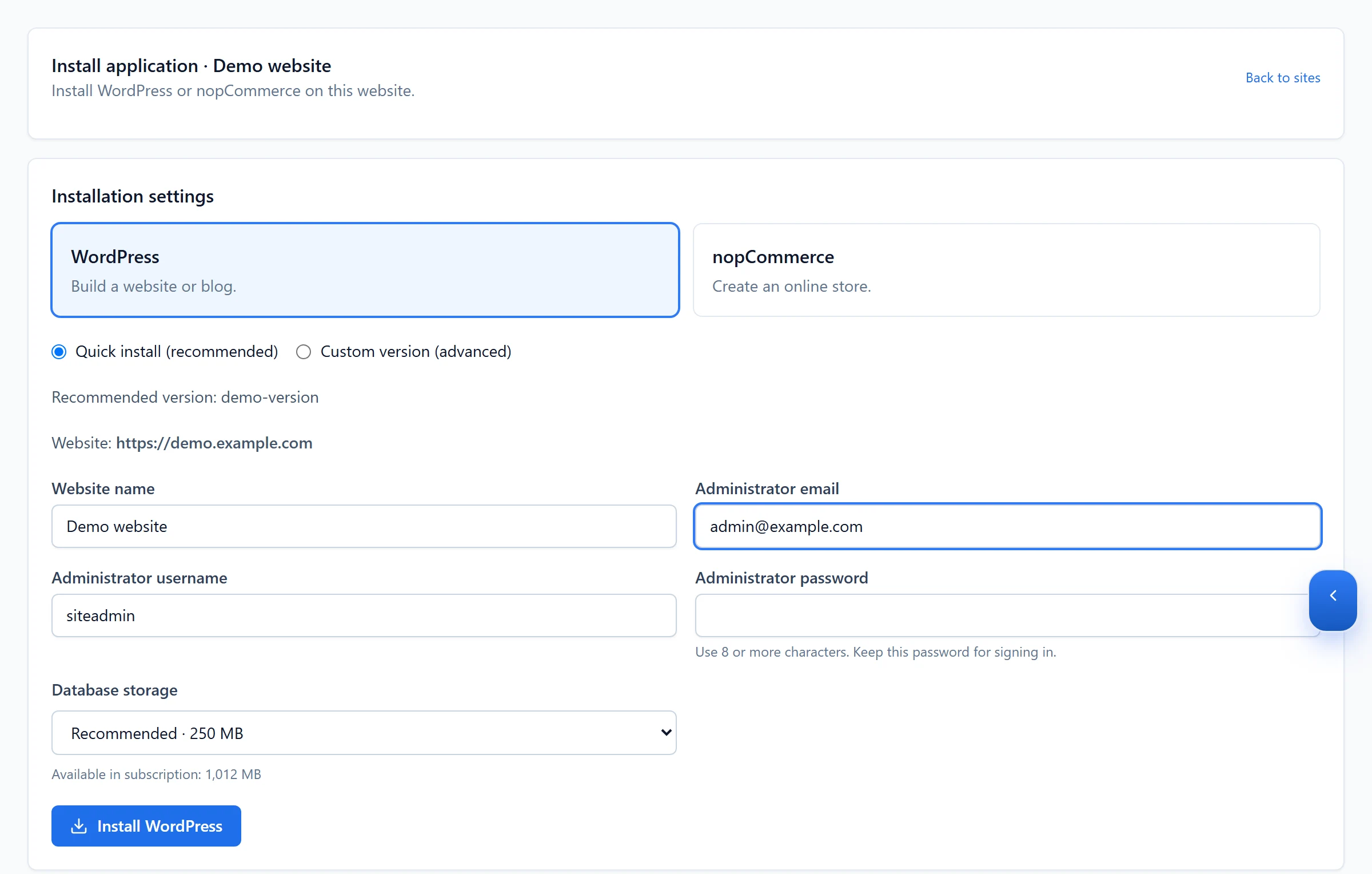
Figure 1: Review the application, source, administrator fields and database storage before installation. WordPress example with demo data; no content replaced. View full-size image 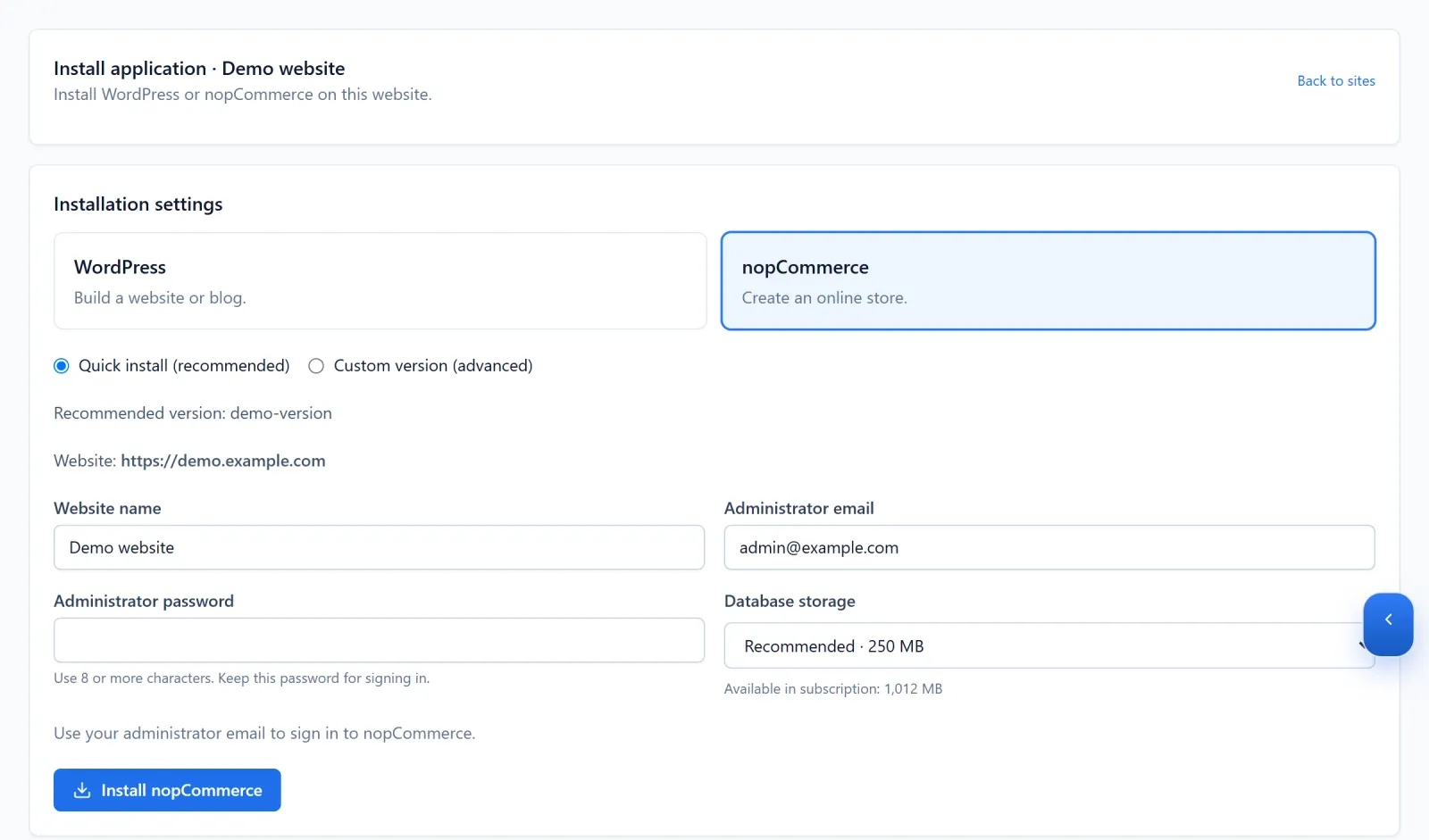
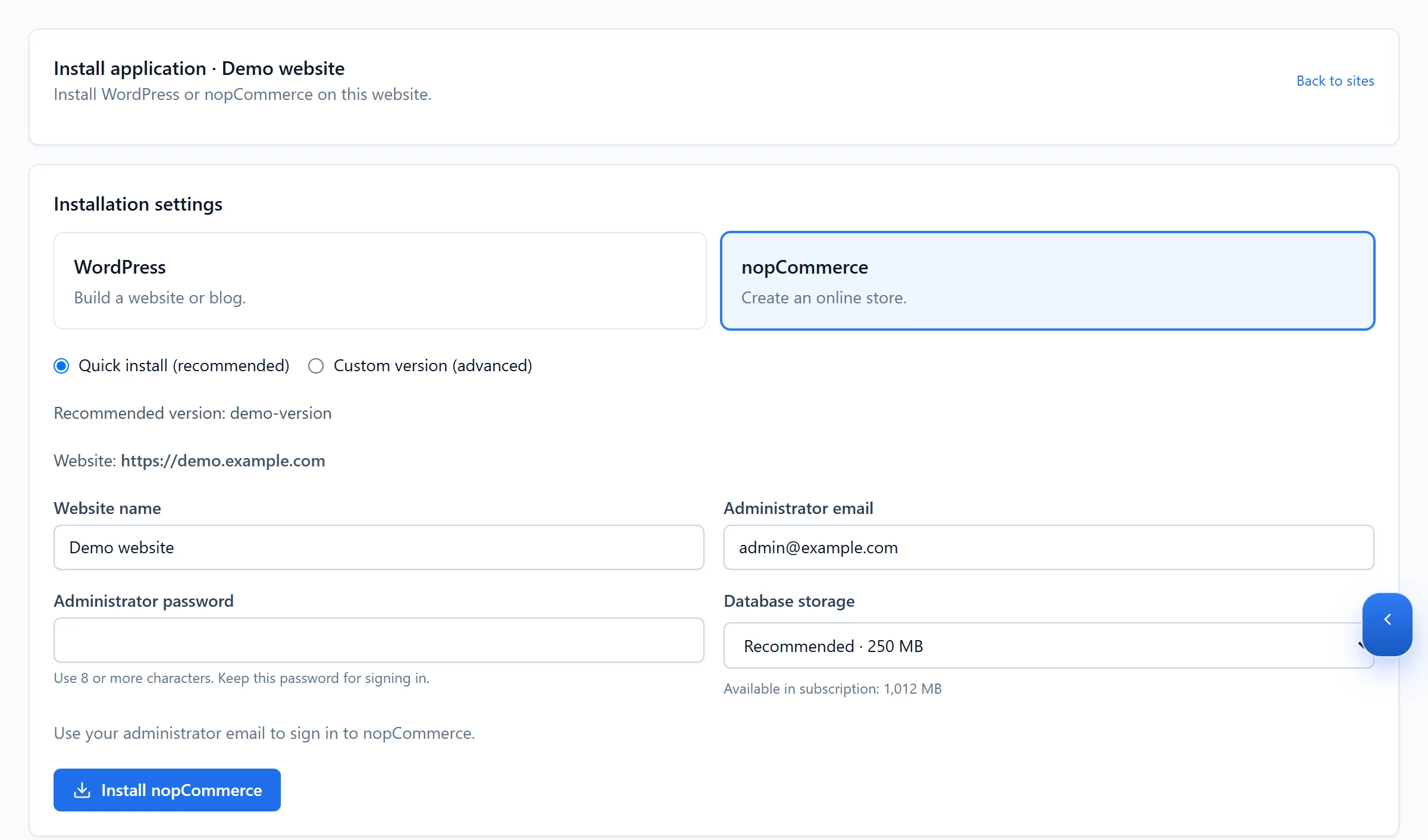
Figure 2: nopCommerce has its own requested setup fields. Review the current form and available source for your website. Demo version and values; installation not submitted. View full-size image - Confirm the target website and replacement warning, then submit and monitor progress. If initial setup is required, choose Show setup details and use the temporary credentials to open Open setup wizard.
- Complete the WordPress administrator setup or enter the database details supplied for nopCommerce. Return to the panel and select I finished setup — verify and clean up.
Check the result
- Test the homepage and administration login. Confirm the site identity and database, and complete any publicly accessible setup wizard.
If something goes wrong
- Inspect the failed stage and error before attempting another replacement. Review partially created files and databases before cleanup.
- For a recovery-required state, give support the site, application version and installation record.