Enter your shared-hosting control panel
Enter your shared-hosting NewCP resource panel to manage sites, files, FTP, databases and related tools.
Applies toFor shared hosting. VPS and dedicated operating systems use different management paths.
On this page
Before you start
- Sign in with the account used for the purchase and confirm that provisioning is complete.
- If you have several plans, identify the right subscription and its status first.
Follow these steps
- Find your active hosting subscription card in the CP customer centre. Click the card itself to enter that subscription’s management panel.
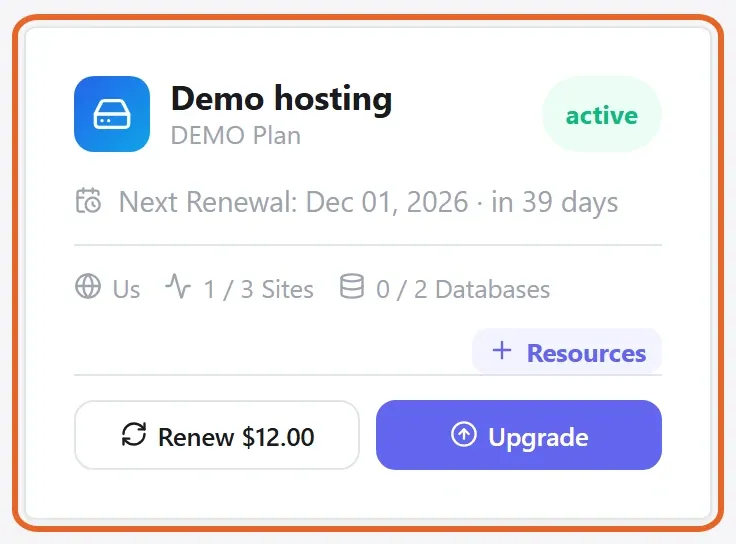
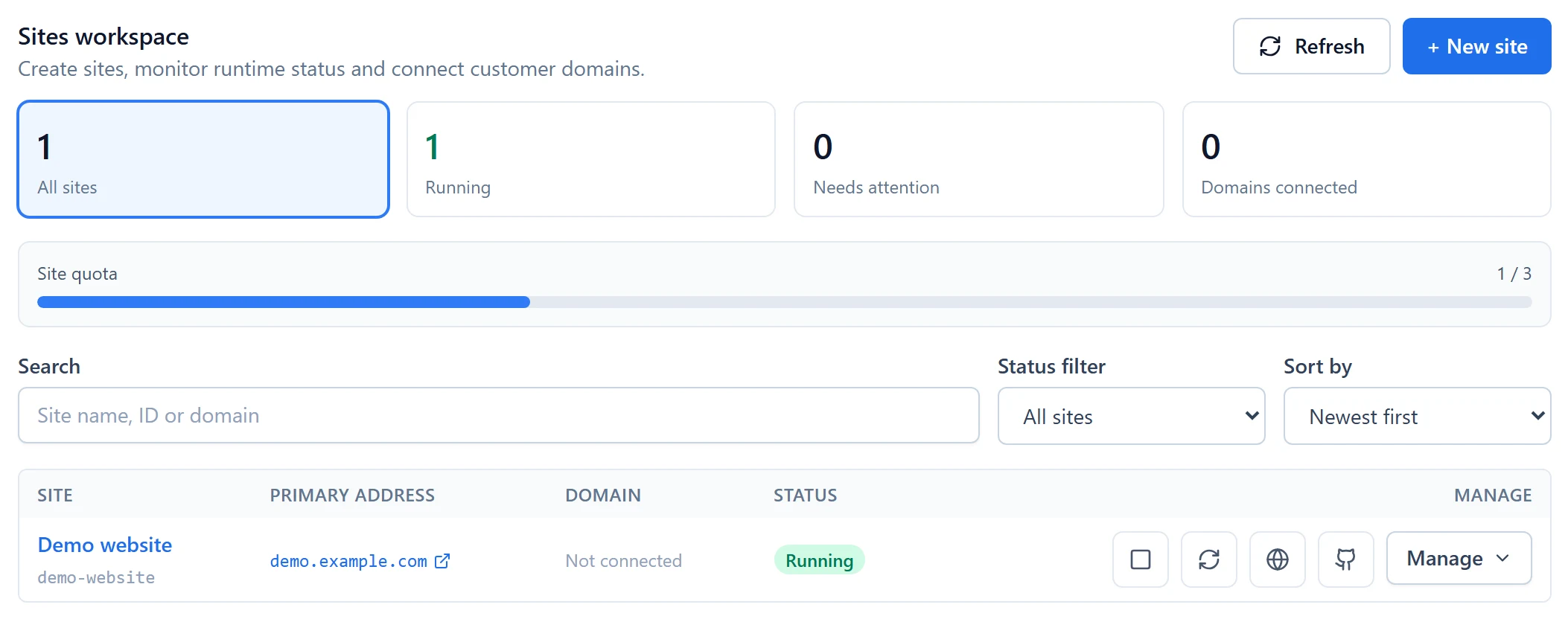
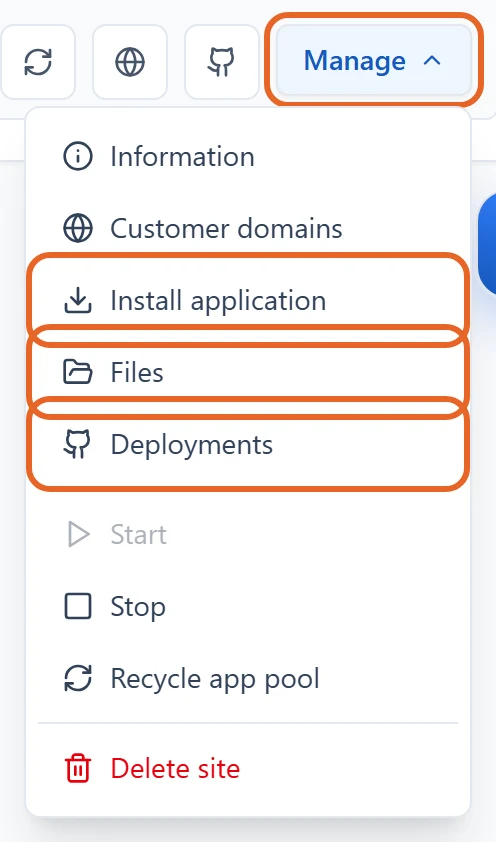
Figure 1: Click the hosting subscription card itself to enter its control panel. Renew, Upgrade and Resources are separate actions. Demo data only. View full-size image - Check the package name and usage, then find the subscription’s website in Sites. Its Manage menu offers Files, Install application and Deployments for publishing your content.
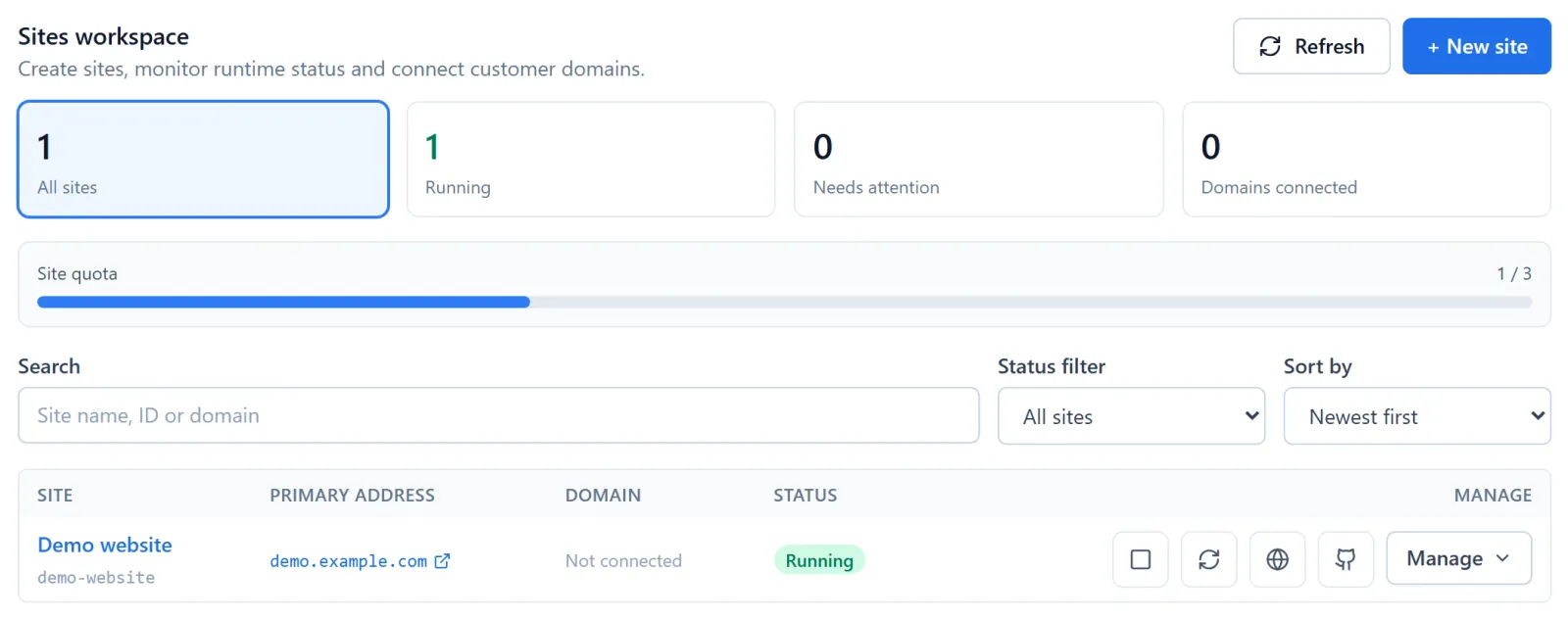
Figure 2: In Sites, find the website for your subscription and check its status and primary address. The example.com address and quota are demo data. View full-size image 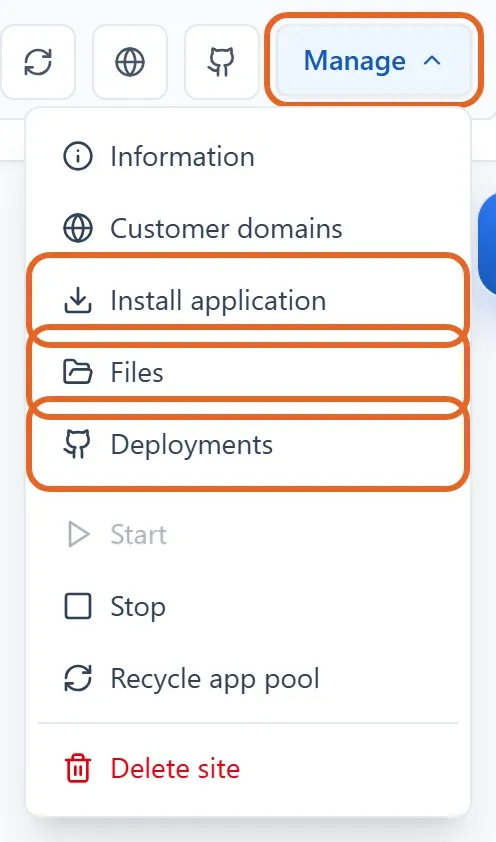
Figure 3: Open Manage beside the website. Choose Files to upload content, Install application to install an app, or Deployments for GitHub deployment. Demo data only. View full-size image - Free and paid services can have different permissions; follow the access message shown for your current plan.
Check the result
- You should see the selected subscription’s website and usage. Note the access address; it may show a default page until you publish your content.
- If the subscription is ready but no website appears, check the account and subscription, then ask support to check provisioning.
If something goes wrong
- For not-ready, suspended, expired or connection errors, retain the message and subscription reference. Check billing and service state.
- Use the available retry action without repeatedly provisioning another service. Open a ticket if the handoff still fails.