Connect a domain and verify HTTPS
Configure the records returned for your site and check DNS, binding and certificate status separately.
Applies toFor hosted-site domain connections. Domain registration, DNS hosting and website binding are separate steps.
On this page
Before you start
- Have access to the active DNS provider and save existing records, especially email MX and TXT records.
- Identify the website in your active subscription and the target address supplied by the panel. Do not use the public marketing website or control panel address as your DNS target.
Follow these steps
- Open domain management for the target site and add the actual hostname, such as www.example.com.
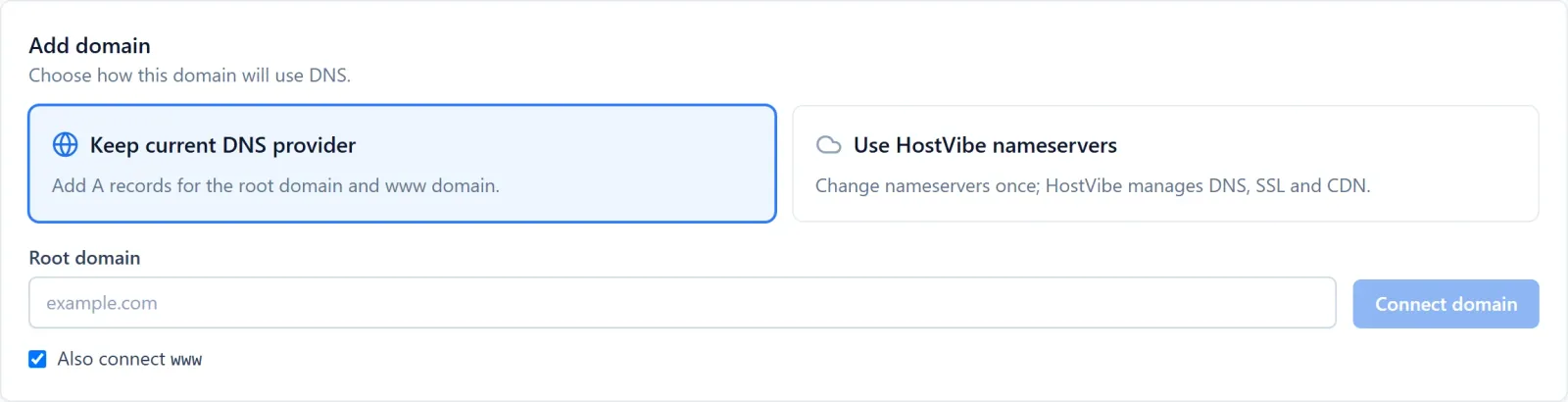
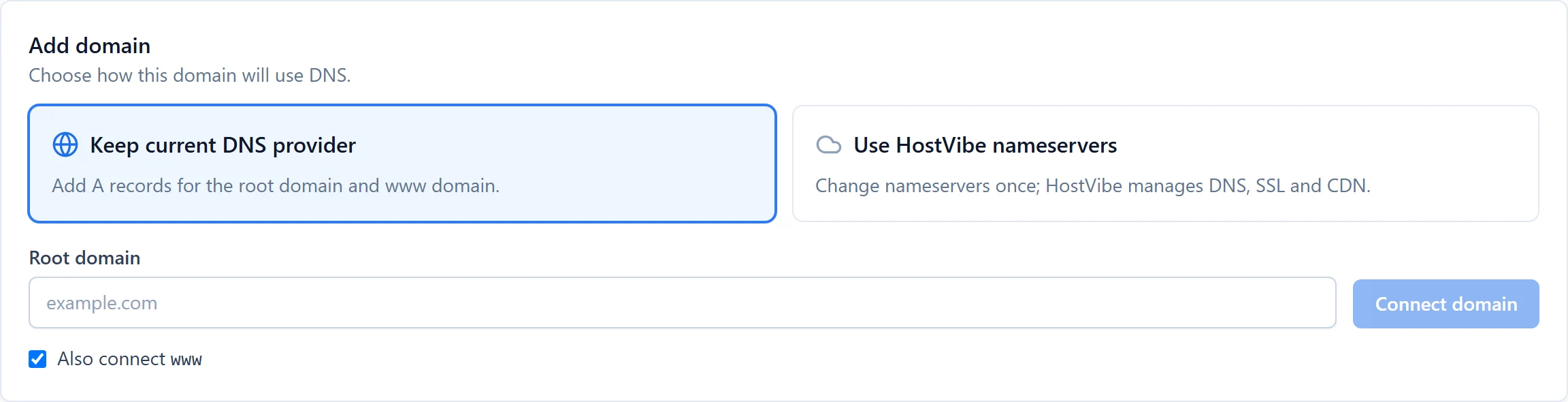
Figure 1: Open Customer domains for the intended site and review the connection method before entering your domain. Example interface; no DNS changes made. View full-size image - Use the connection method and DNS records returned by the panel. Add the required ownership and certificate records rather than copying another site.
- Refresh status and inspect DNS routing, origin binding and certificate state. Check the apex and www hostnames separately.
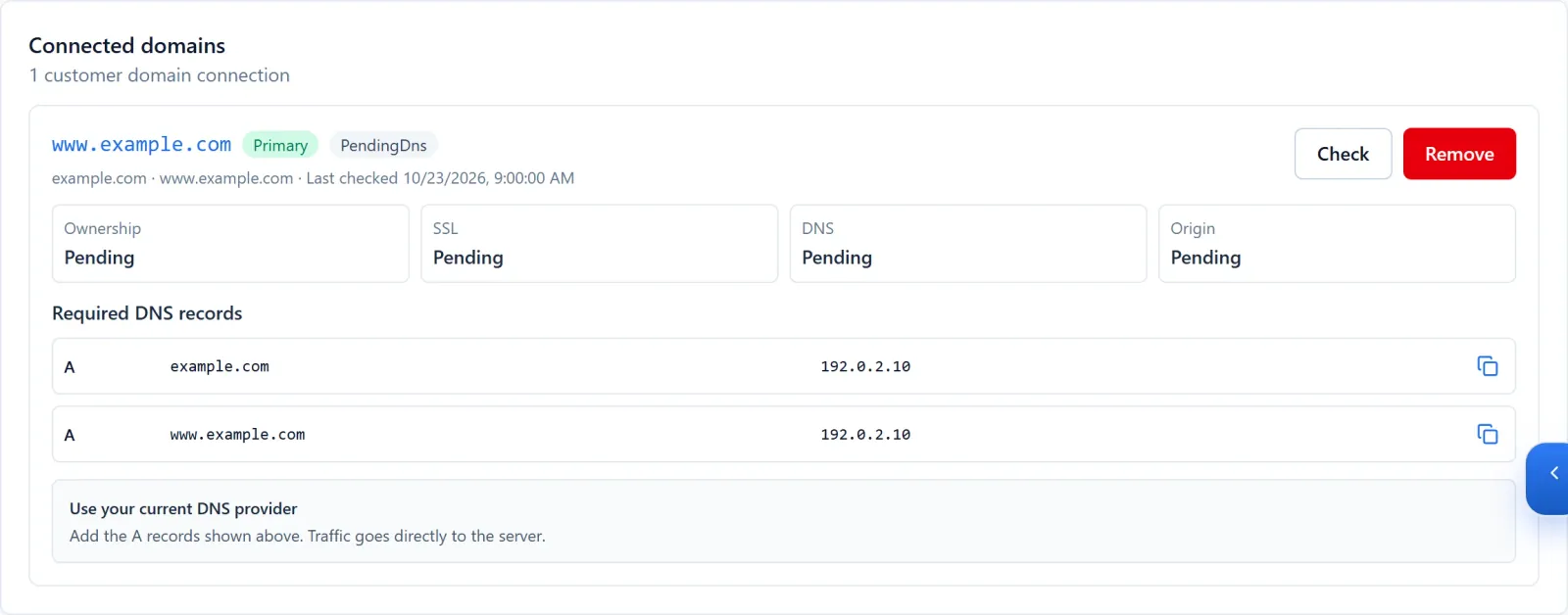
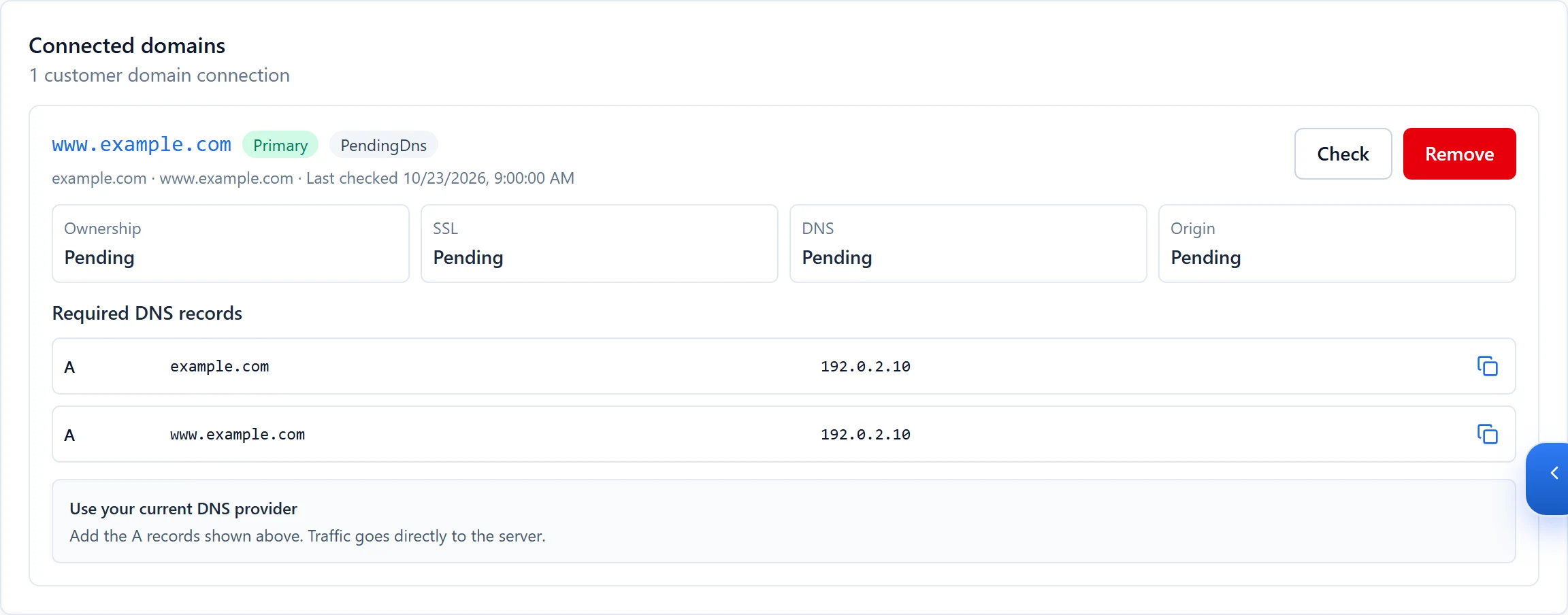
Figure 2: Read the required DNS records and check Ownership, SSL, DNS and Origin separately. The example.com hostnames and 192.0.2.10 address are demo values, not your DNS target. View full-size image
Check the result
- Open the real hostname in a browser. Confirm the correct website, a matching HTTPS certificate, forms and internal pages.
If something goes wrong
- For pending verification, check whether the DNS provider automatically appended the domain to a record name. Do not repeatedly remove correct records.
- For HTTPS failures, retain certificate and routing states. Do not disable validation or change unrelated email records; send support the hostname and redacted screenshots.