Start here: find your product and management panel
Choose the correct starting point for your account, hosting, server or website project.
Applies toFor new visitors and customers. Access and management tools depend on the product.
On this page
Before you start
- Have your registration email and product name ready. You can review plans before purchasing.
- A domain, website files and a running hosting service are separate things. Generating a website does not publish it.
Follow these steps
- Open the customer centre and check your services. Shared hosting provides the NewCP resource panel for convenient site, file, FTP, database, mail and certificate management. Use VPS for virtual servers and the delivery ticket for a dedicated server.
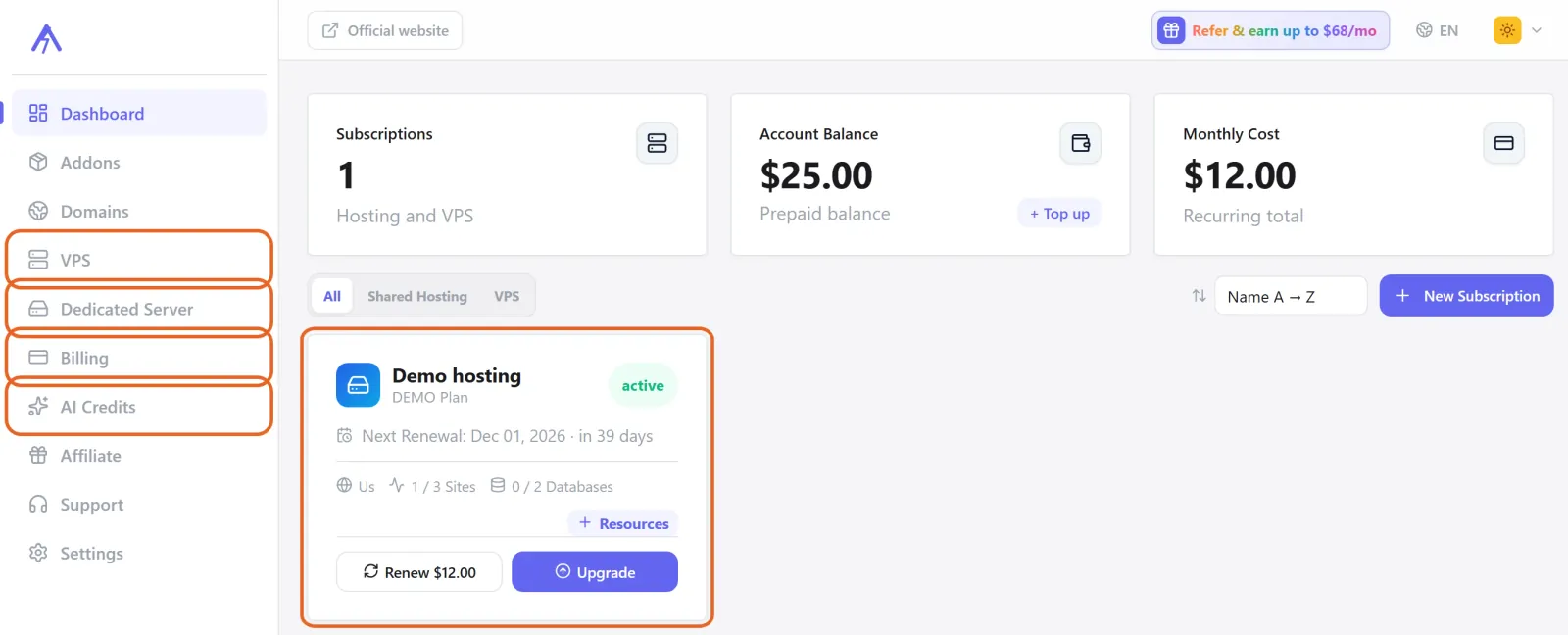
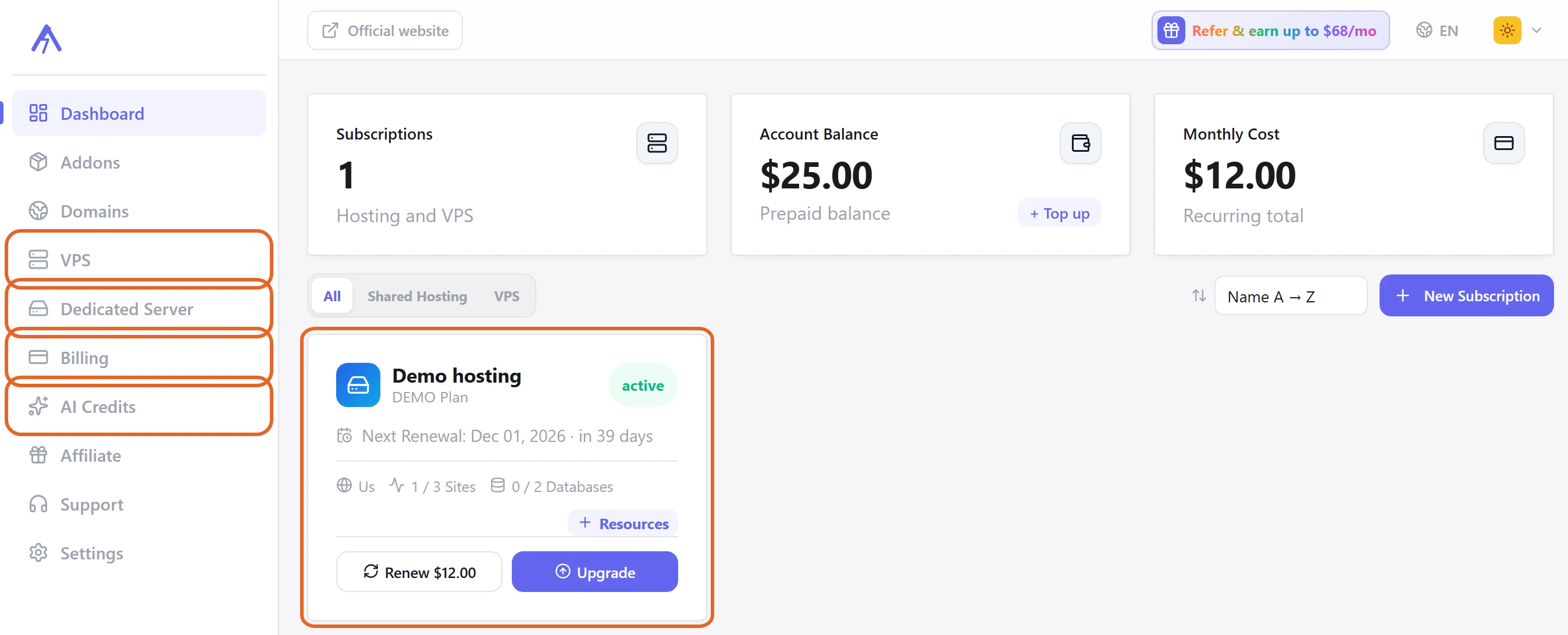
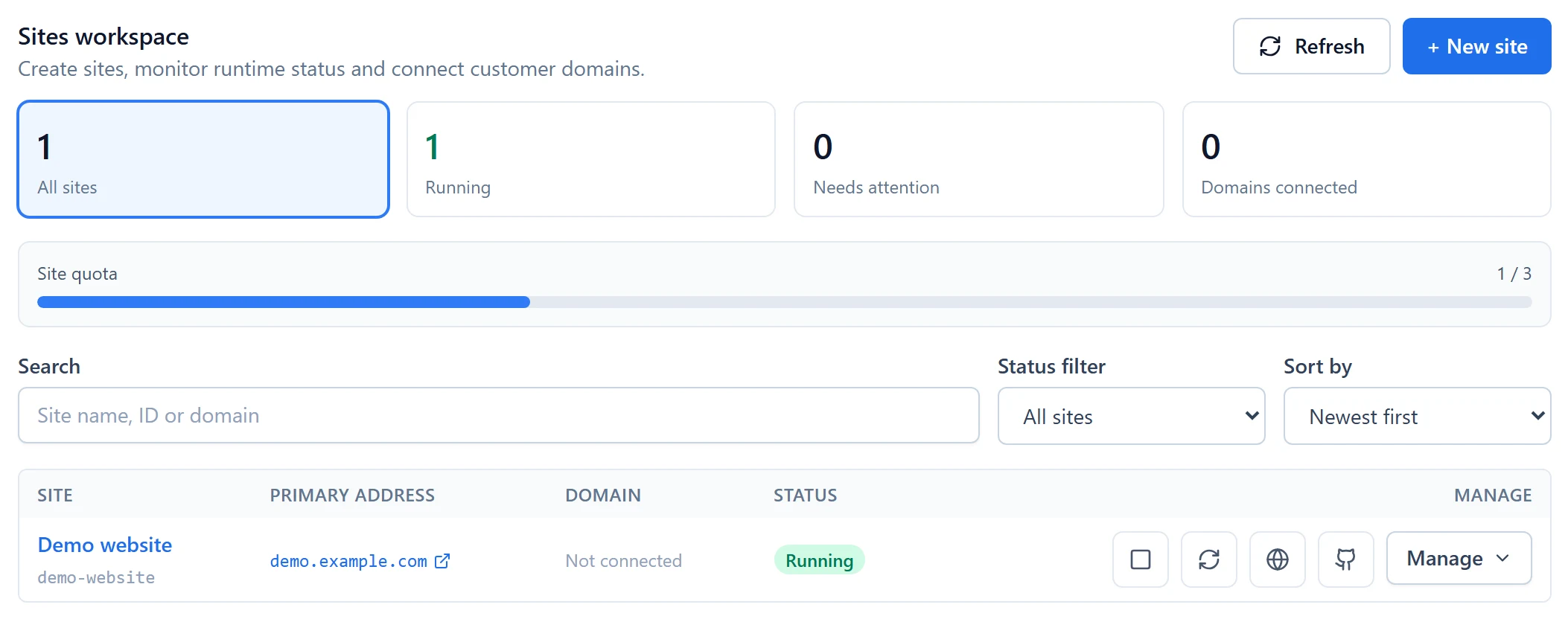
Figure 1: Start in the customer centre. Check your subscription card, or use VPS, Dedicated Server and Billing for the relevant service. AI Credits manages credits separately. Demo data only. View full-size image - After activating shared hosting, click its subscription card directly in the CP customer centre to enter the subscription management panel. Find the website, upload files, install an application or deploy from GitHub, then open the access address shown by the panel.
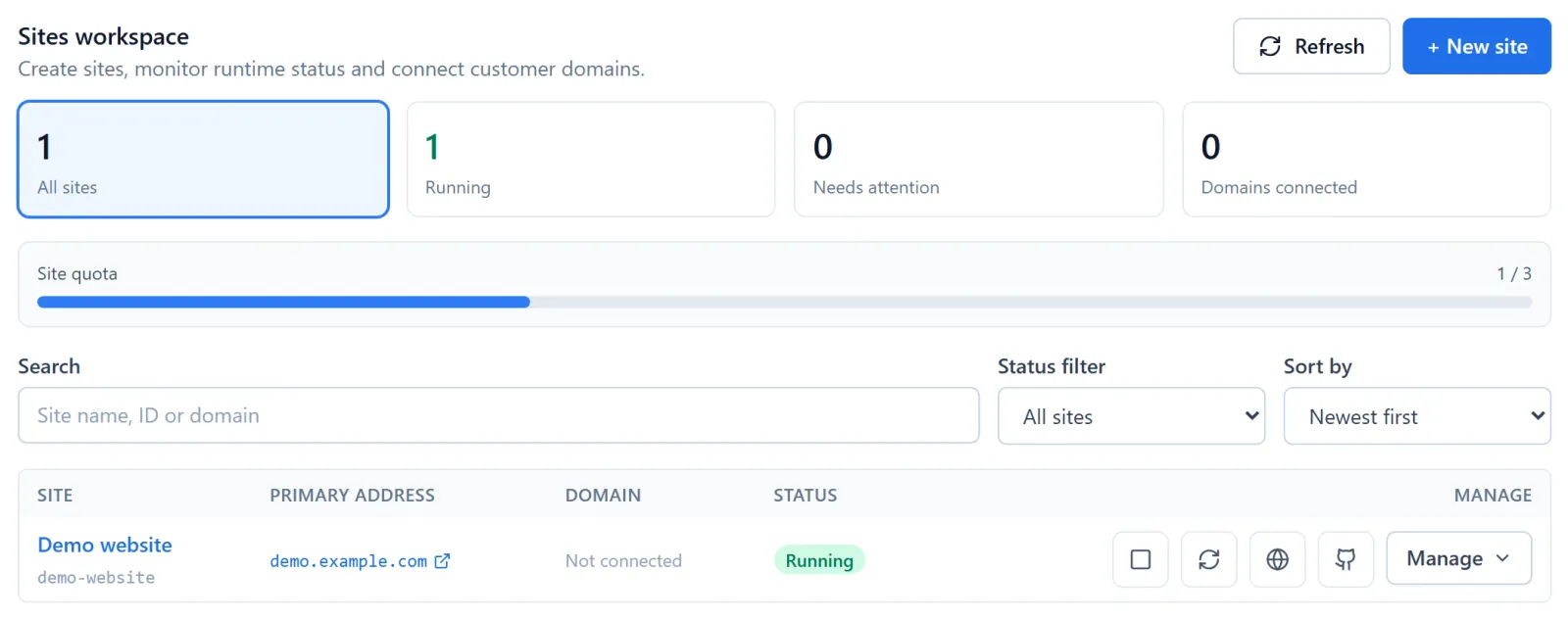
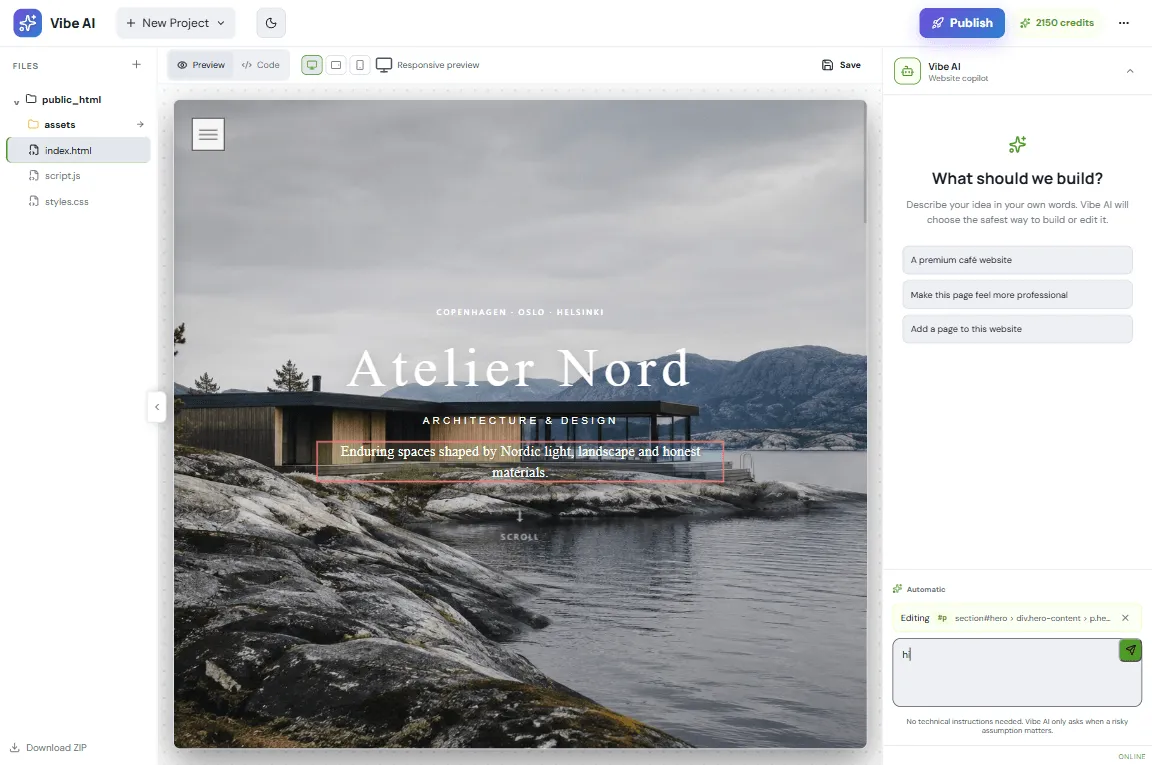
Figure 2: After entering the hosting panel, find your website in Sites. Use Manage for publishing tools, then open the primary address. Demo data only. View full-size image - Use AI Builder to manage generated projects. Buying AI credits and buying website hosting are separate actions.
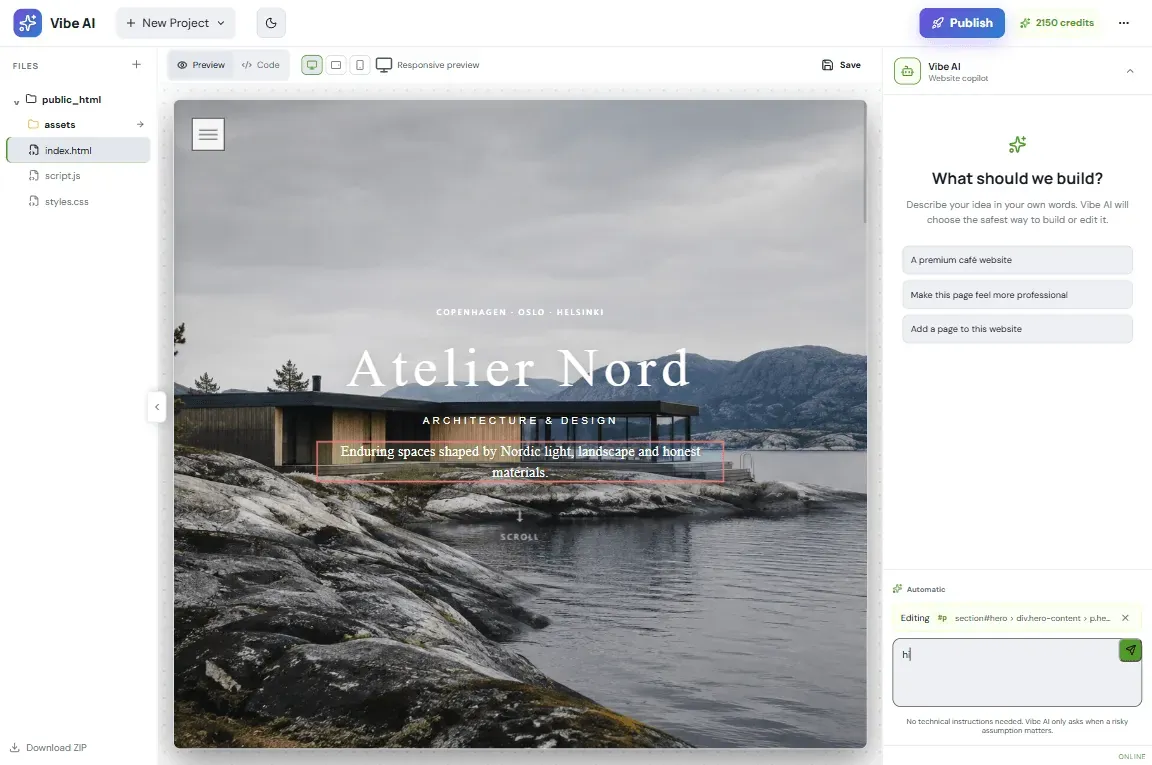
Figure 3: AI Builder has its own project workspace with files, preview and AI chat. Publish is a separate action from generating or previewing a website. Example project shown. View full-size image - For an existing website, keep a source copy and database backup before migration or replacement.
Check the result
- Check that the subscription or project name belongs to your account. After publishing, open the public URL rather than relying only on the editor preview.
If something goes wrong
- If a purchase is missing, check the signed-in email and invoice state before ordering again.
- Give support the product and order reference, together with the step that failed. Do not send card details or passwords.