Connect to a Windows or Linux VPS
Find the delivered service details and connect using RDP or SSH.
Applies toFor provisioned VPS services. Shared-hosting FTP and site-panel access are not VPS operating-system logins.
On this page
Before you start
- Select the correct VPS in the customer centre and check its state and operating system. Use a trusted device and suitable client.
- Use the address, port, username and credentials displayed for the service without sharing credential screenshots.
Follow these steps
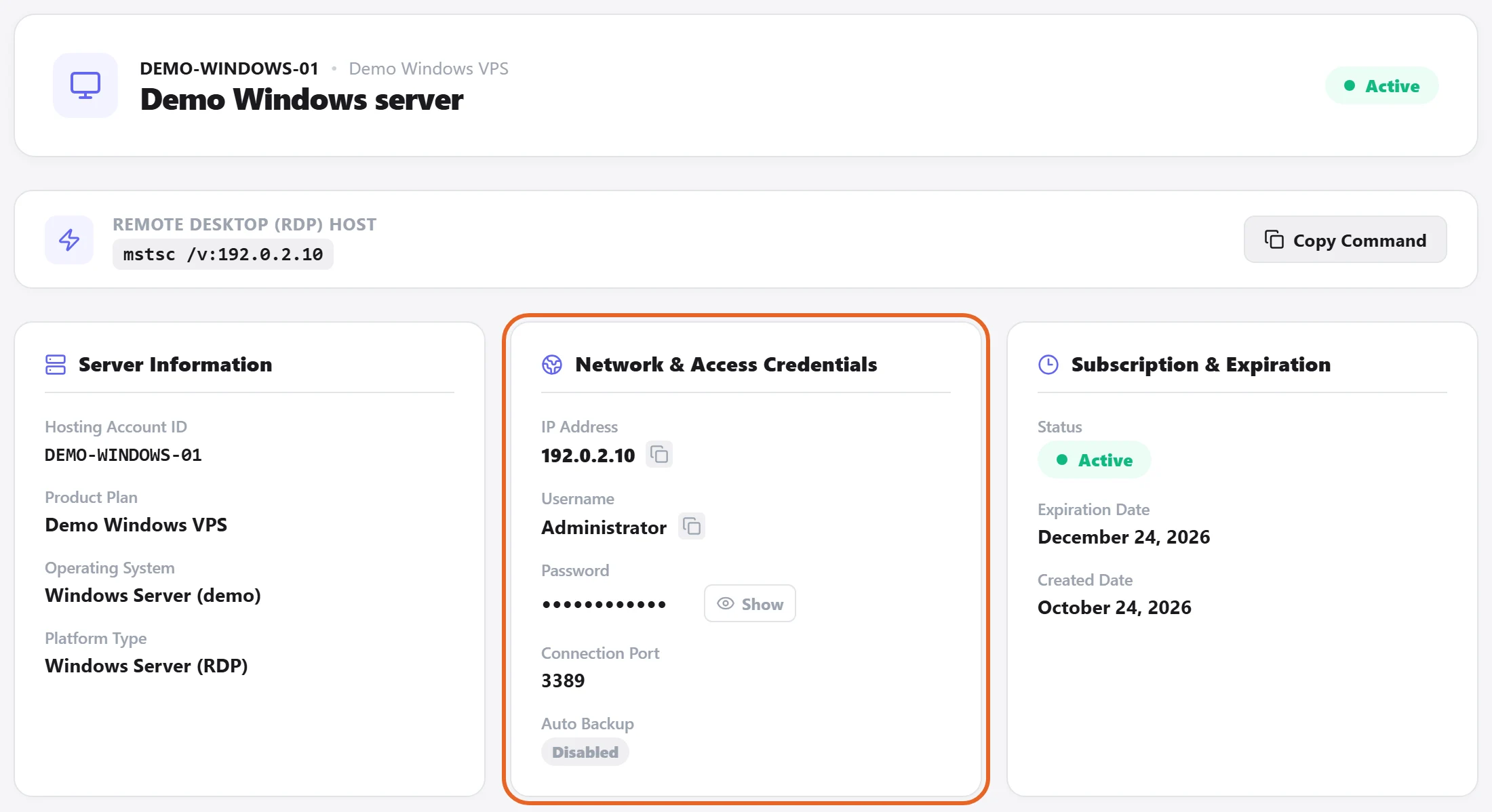
- For Windows, use a remote desktop client with the displayed RDP destination and identity.
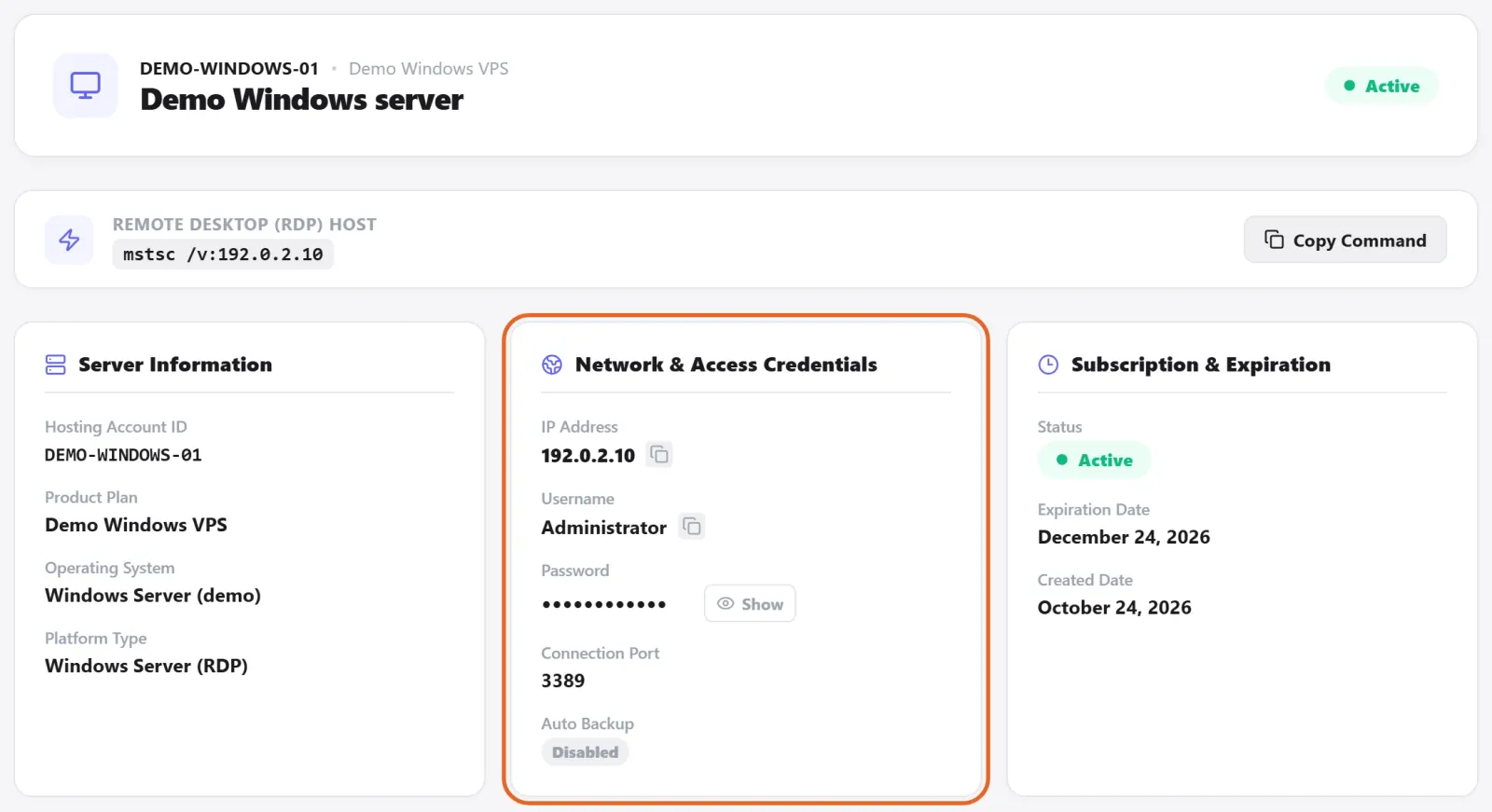
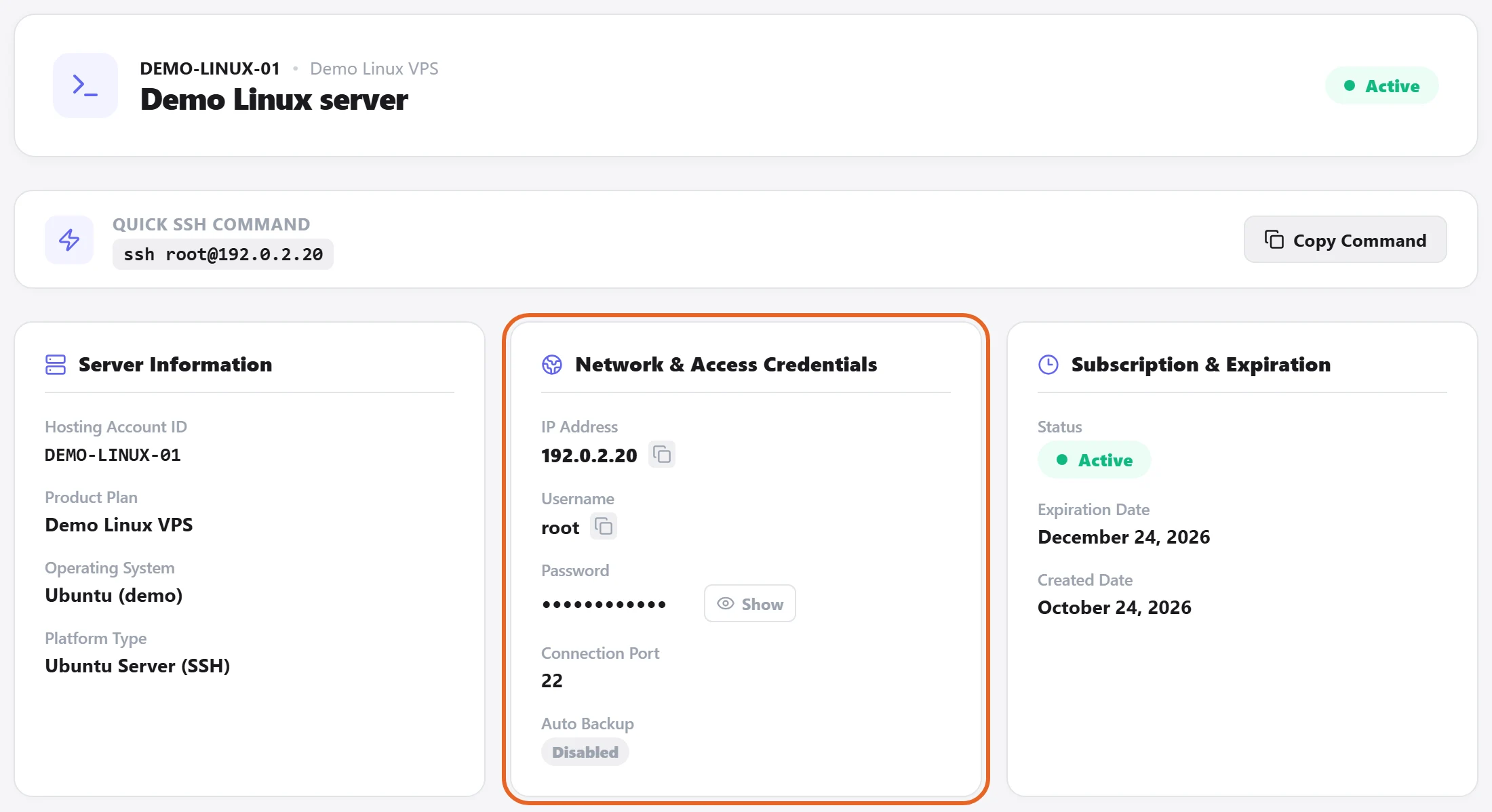
Figure 1: For Windows, check the service identity, operating system and Network & Access Credentials before using your remote desktop client. The address and service details are fictional demo data; the password remains masked. View full-size image - For Linux, use an SSH client with the supplied settings. Verify the server identity on first connection rather than ignoring every host warning.
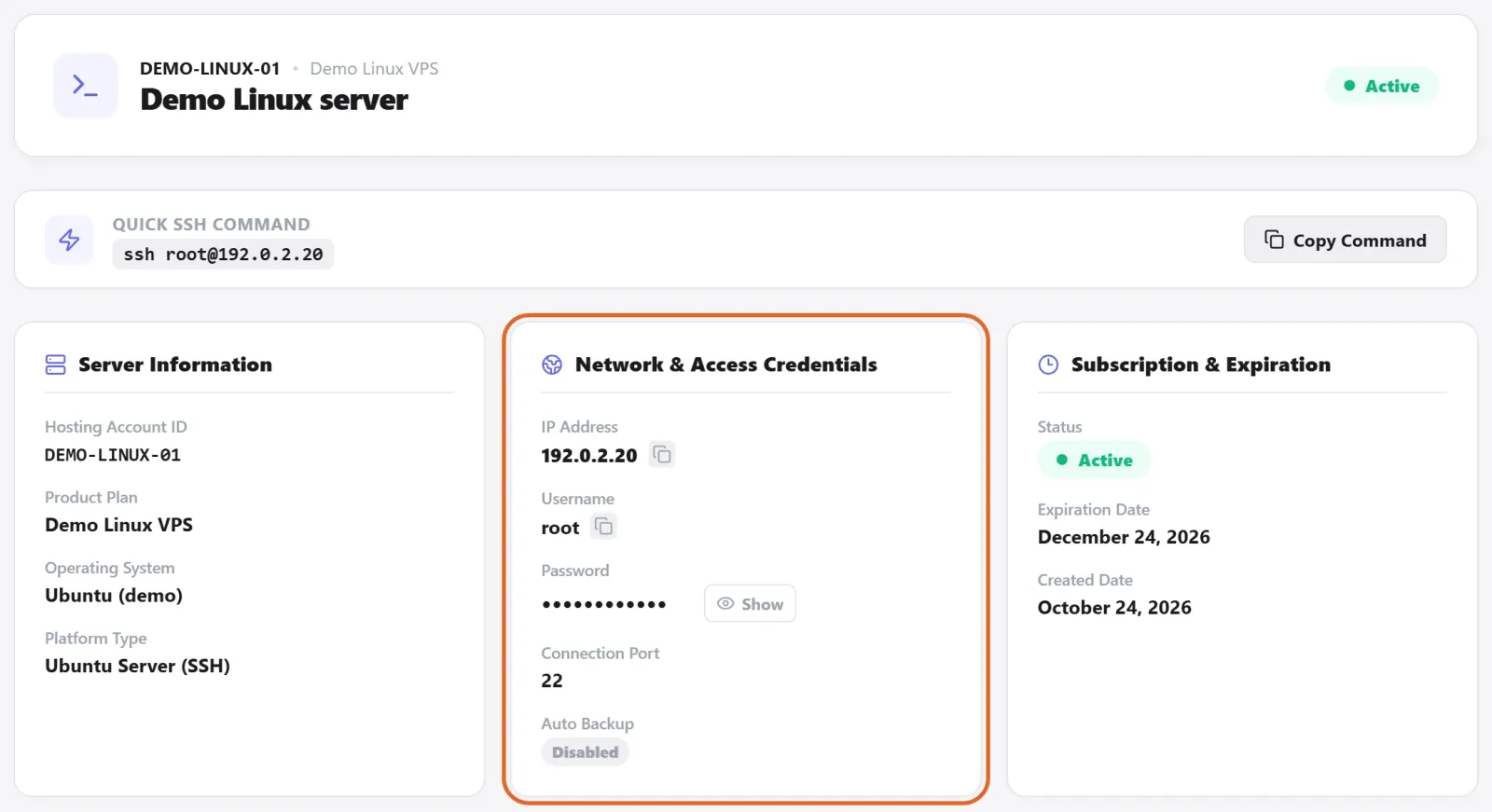
Figure 2: For Linux, use the supplied SSH destination, username and port, and verify the server identity on first connection. Demo service shown; no password retrieved or remote connection made. View full-size image - After login, confirm the expected system. Before changing networking or remote-access rules, retain a recovery path.
Check the result
- You should reach the correct operating system and complete a basic action. Remote access does not mean your business application is deployed.
If something goes wrong
- For connection failures, check service state, destination, port and client connectivity before investigating credentials.
- If credentials are unavailable or a configuration change locked you out, stop repeated attempts and send support the service reference, OS, time and redacted error.