Activate FTP for a website
Use the site-specific FTP credentials shown by your hosting panel.
Applies toFor plans permitting FTP. Some free-plan or node restrictions may disable actions.
On this page
Before you start
- After activating shared hosting, identify its website in NewCP and prepare an FTP client. An additional website is not required to use FTP.
- Use the protocol and port provided by the panel; do not assume FTPS or SFTP is available.
Follow these steps
- Open FTP in the hosting panel, locate the target site and activate its FTP access.
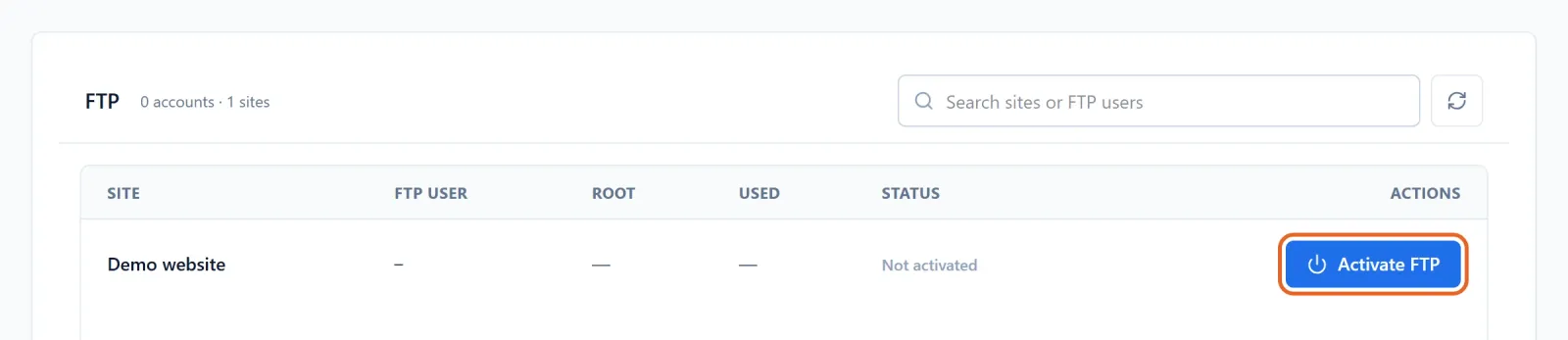
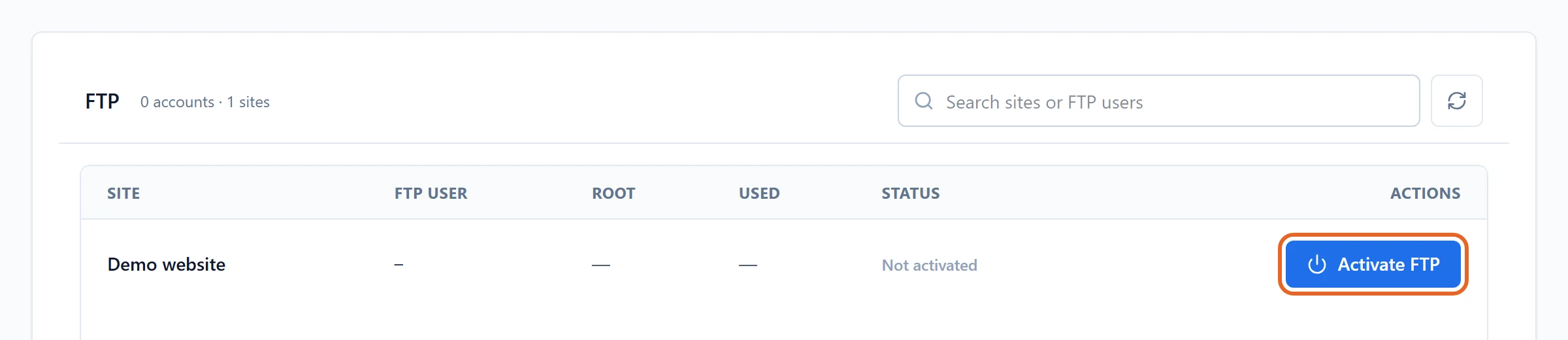
Figure 1: Locate the intended website in FTP and choose Activate FTP. Demo website shown; activation was not performed. View full-size image - Copy the host, port, username and password into your client. Store credentials only in a controlled location.
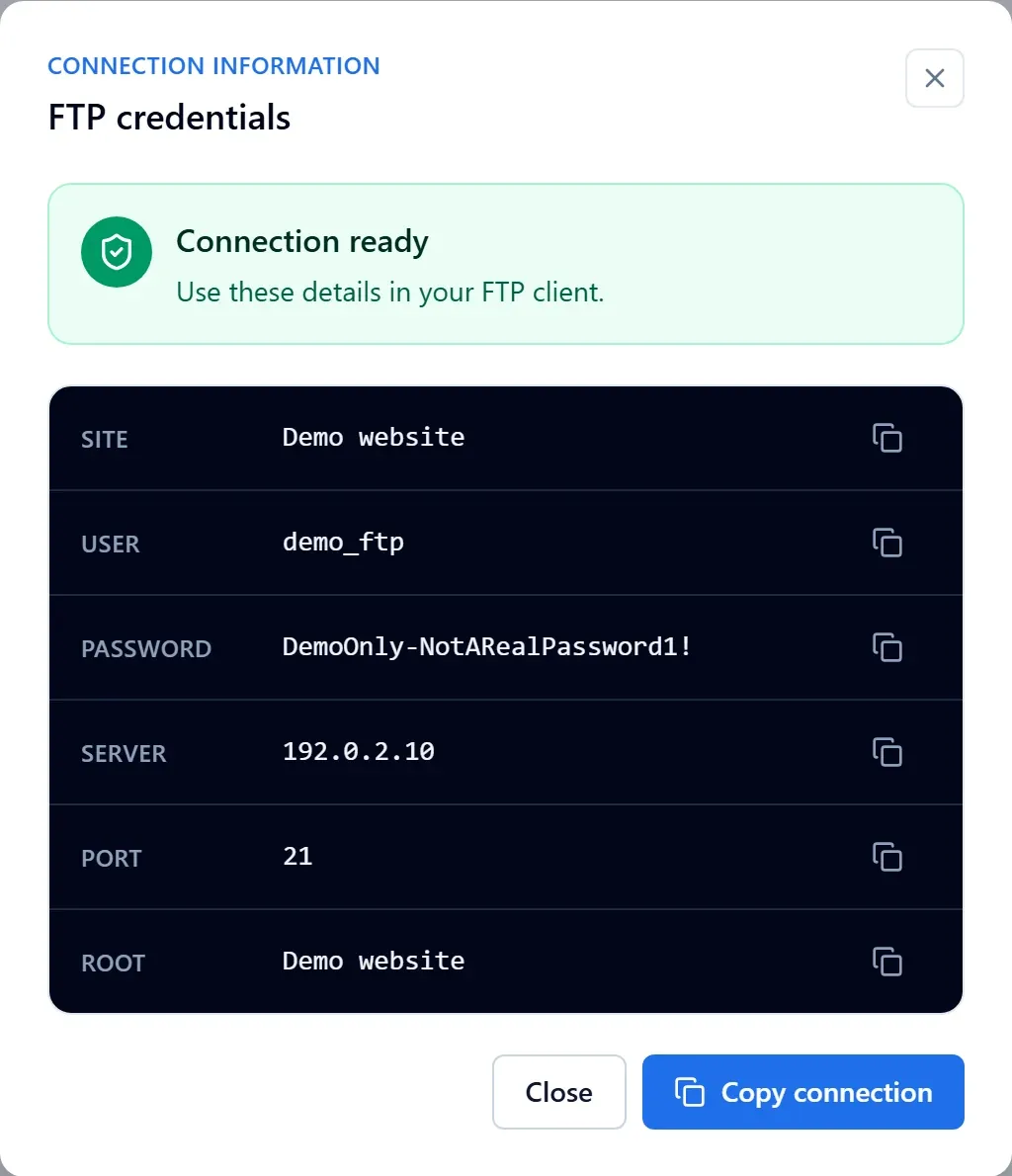
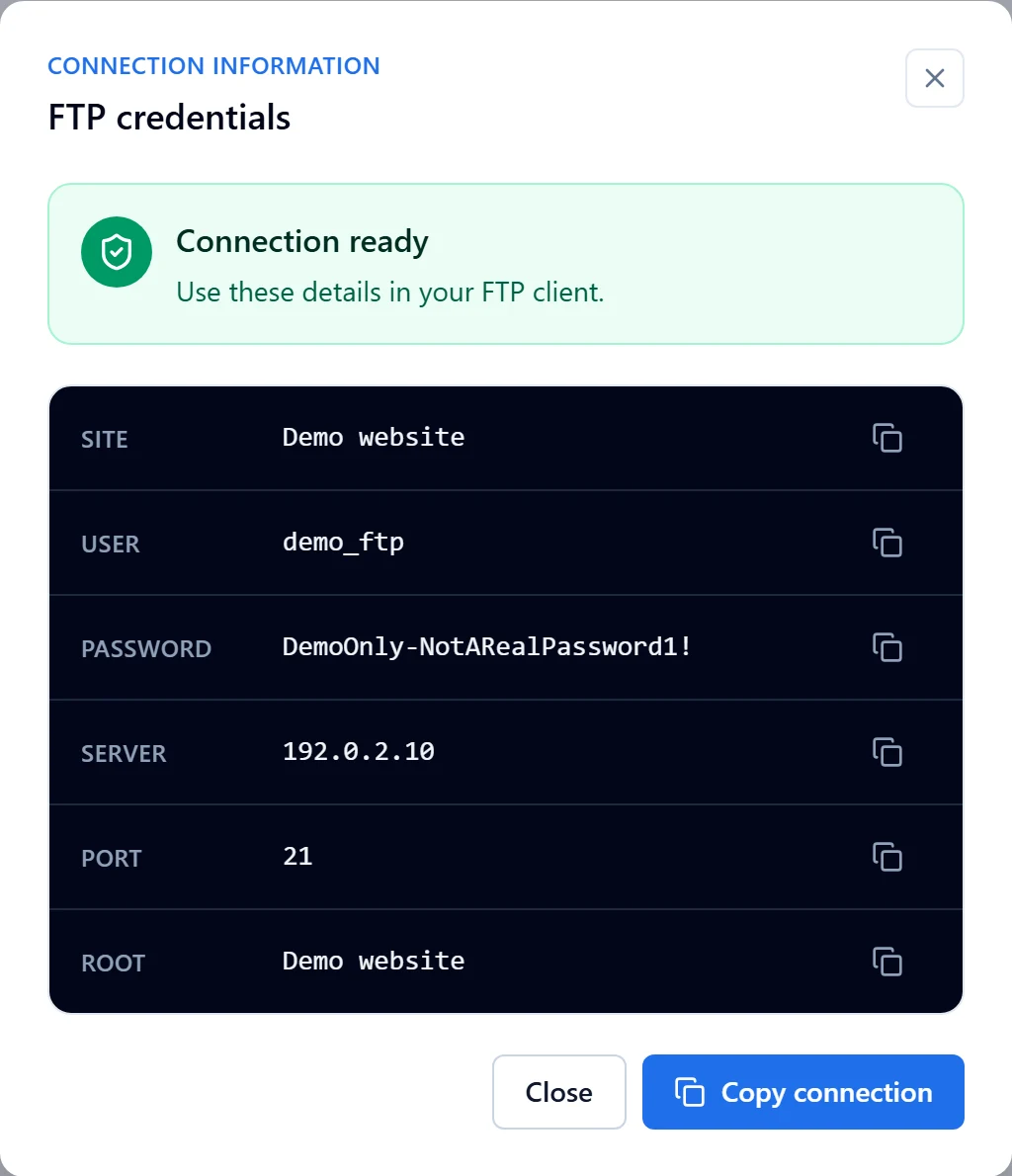
Figure 2: After activation, Connection shows the values to enter in your FTP client. Every value here, including the password and server address, is fictional demo data. View full-size image - Confirm the remote location belongs to the intended site. Upload a harmless test file before replacing production files.
Check the result
- Find the test file in the file manager and check its public path if it is intended to be publicly accessible.
If something goes wrong
- For authentication errors, check the username, account state and whether the password was rotated. All clients need updating after a reset.
- For timeouts, send support the host, port, error and time without the password. Removing FTP access and removing website files are different actions.