Dedicated server delivery after purchase
Confirm your order and operating-system requirements, then verify the delivered server.
Applies toFor dedicated servers. The current customer page describes manual preparation after payment and delivery details through a support ticket.
On this page
Before you start
- Confirm hardware, operating system, intended workload and network requirements before purchase. Availability follows the current offer and agreement.
- Do not assume immediate automatic delivery; agree timing with support if your launch depends on it.

Figure 1: The Dedicated Server page explains manual preparation after payment. Confirm delivery timing with support before relying on a launch date. View full-size image

Follow these steps
- After purchase, check the dedicated-server order and related support messages in the customer centre.
- Provide the requested OS and configuration requirements, including any third-party software dependencies.
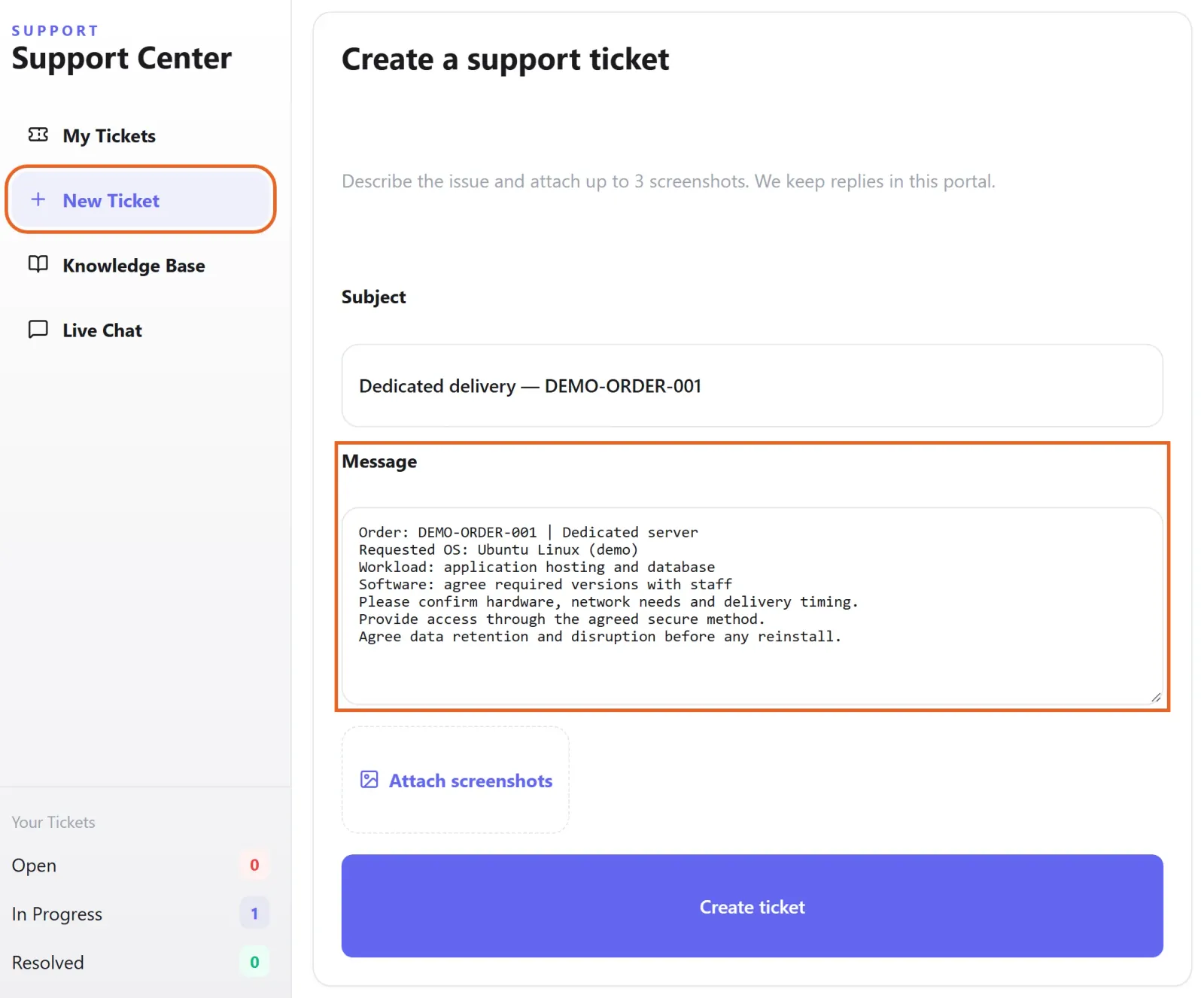
Figure 2: Include the order reference, requested OS, workload and required software in the delivery discussion. Example unsent draft with fictional demo data. View full-size image - Review the delivered server identity, access address, credentials and support path. Windows and Linux use different connection methods.
Check the result
- Log in, verify the agreed system and resources and test the intended access method. Confirm the outcome in the delivery ticket.
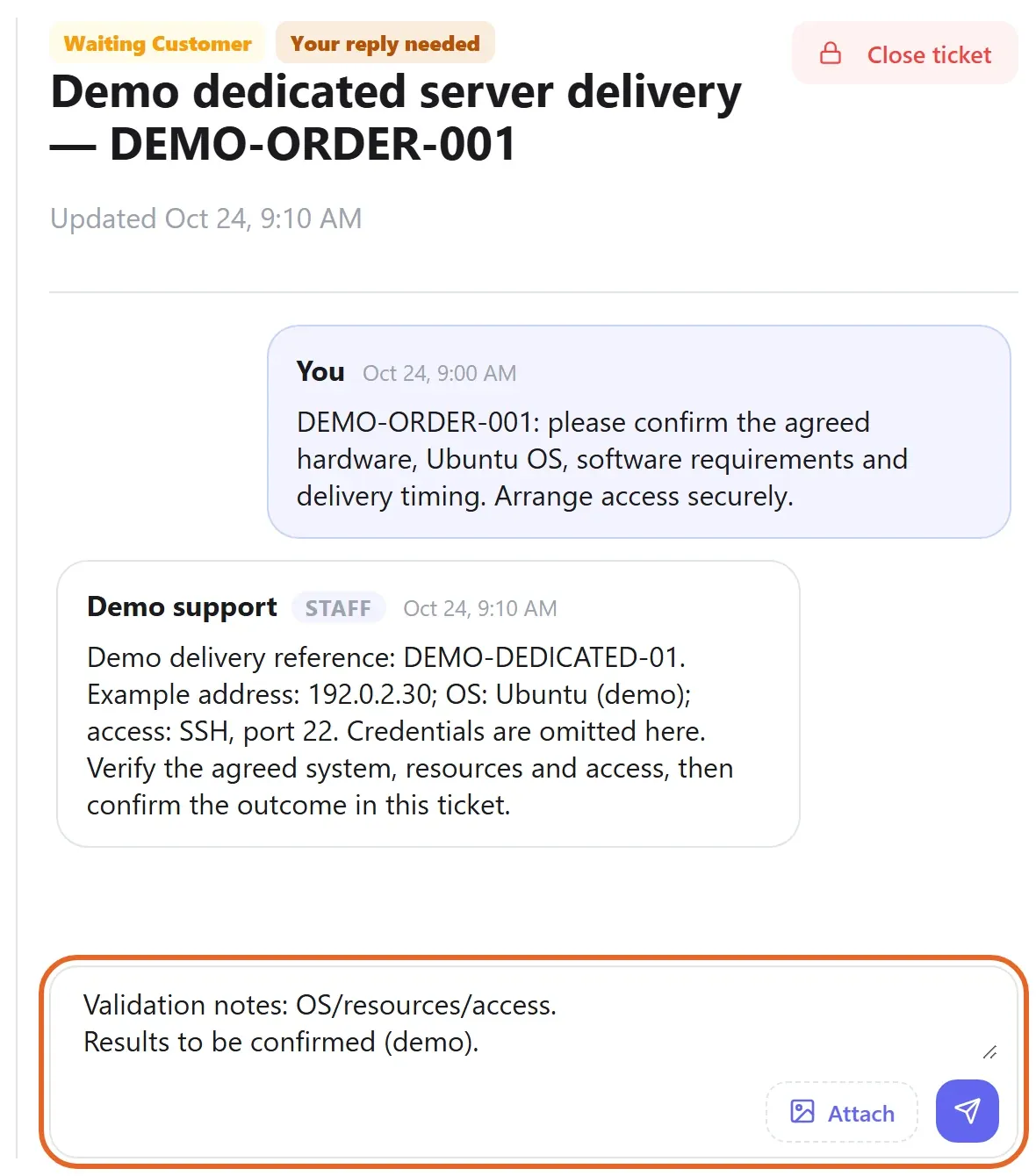
Figure 3: Check the delivered system, resources and access, then record the result in the original delivery ticket. Fictional example conversation and unsent reply; credentials are omitted. View full-size image
If something goes wrong
- For missing delivery or a mismatch, follow up on the original ticket with the order reference instead of ordering again.
- Before reinstallation or configuration changes, agree data retention, backups and the scope of disruption.