View and purchase AI credits
Distinguish account balance, AI credits and hosting charges before buying.
Applies toFor Builder credits. Current purchase and usage screens define quantities, prices, charging and retention rules.
On this page
Before you start
- Use the same account in Builder and the customer centre and inspect the available balance.
- AI credits fund generation tasks; they do not automatically purchase hosting, domains or third-party services.
Follow these steps
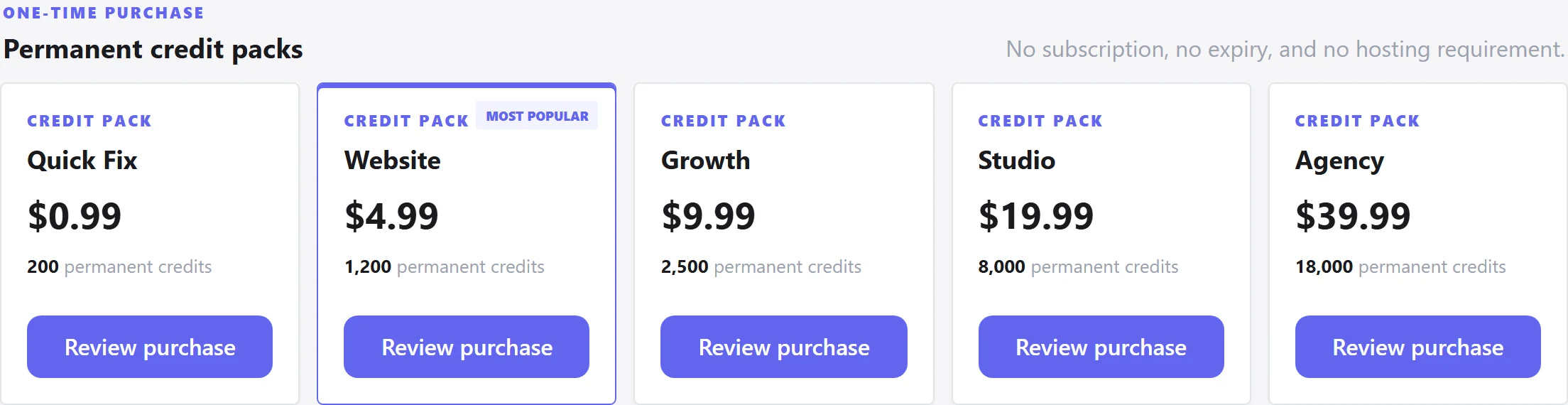
- Open AI Credits in the customer centre and review the credit quantity and total price before payment.
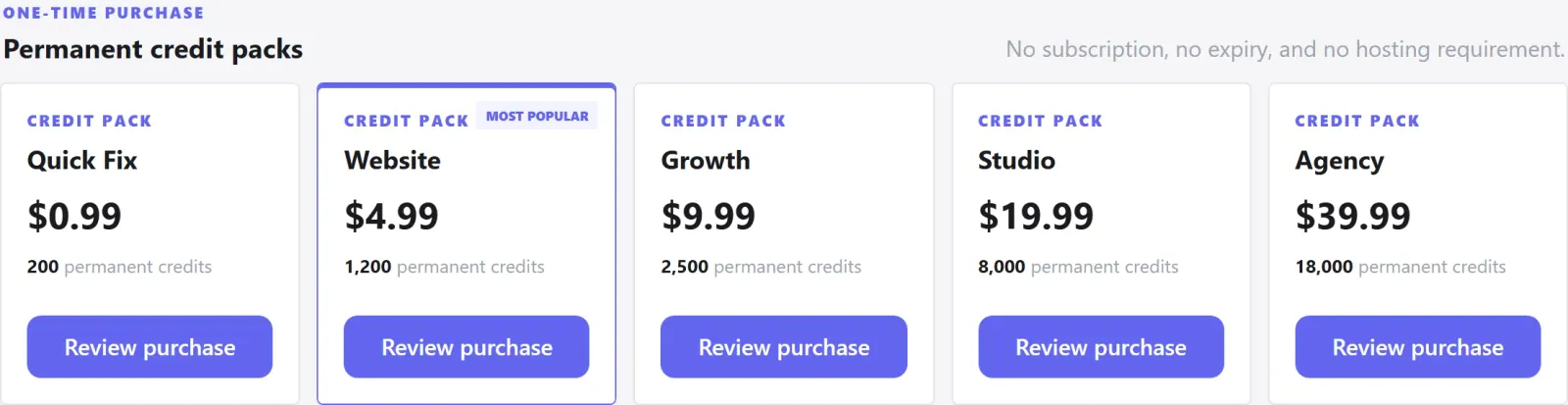
Figure 1: In AI Credits, review the quantity and current price before choosing Review purchase. Example catalogue snapshot; use the live checkout for current terms. View full-size image 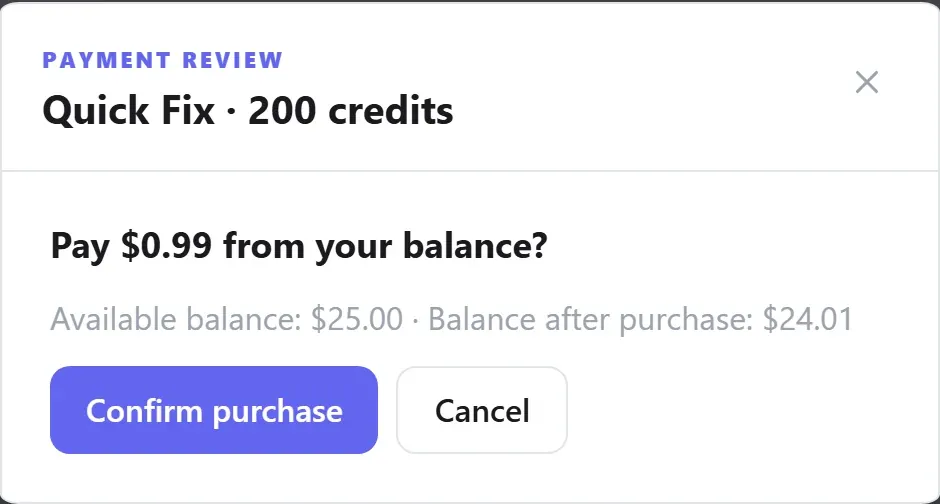
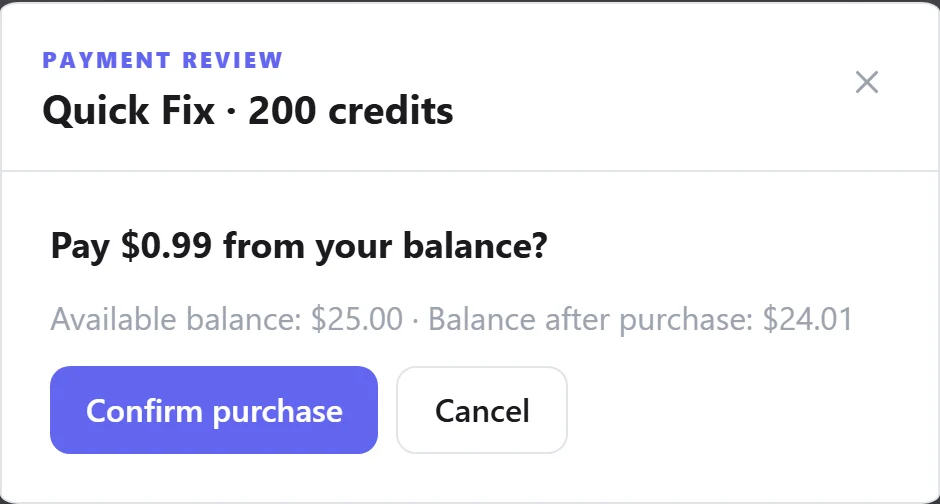
Figure 2: Check the selected pack, charge and account balance before confirming. Demo account balance; no payment submitted. View full-size image - Return to Builder and refresh the account balance, completing the return flow if you started the purchase there.

Figure 3: Return to Builder under the same account and check the credit total at the top right. The 1,200-credit balance is demo data, not a purchase result. View full-size image - Read the task credit indication before generating. Check failed, cancelled or running tasks before submitting another one.

Check the result
- Reconcile the purchase record and Builder balance under the correct account rather than relying only on the payment redirect.
If something goes wrong
- If paid credits are missing, ask support to check the order reference and account email before purchasing or redeeming again.
- For a charge or expiry question, provide the task reference and use actual account records rather than historical plan copy.