Website unavailable: check service, domain and application
Identify the failing layer before changing configuration or asking for help.
Applies toFor general hosted-site diagnosis. Specific applications and nodes can require different remedies.
On this page
Before you start
- Record the exact URL, time, error code and latest release or DNS change.
- Reproduce in a private window or another network. Do not repeatedly delete files or reinstall while diagnosing.
Follow these steps
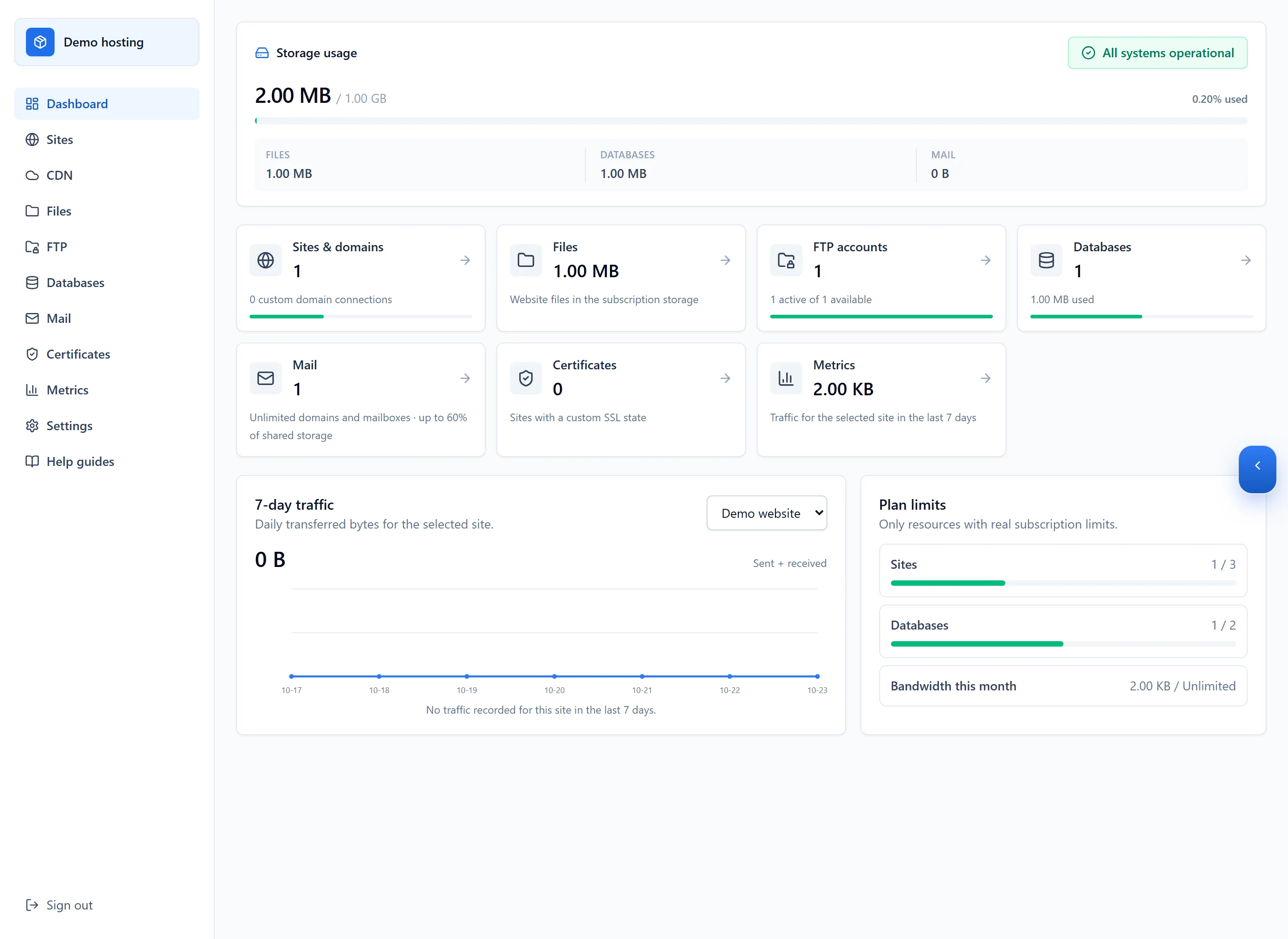
- Check service and billing state, then the site running state and quota in the hosting panel.
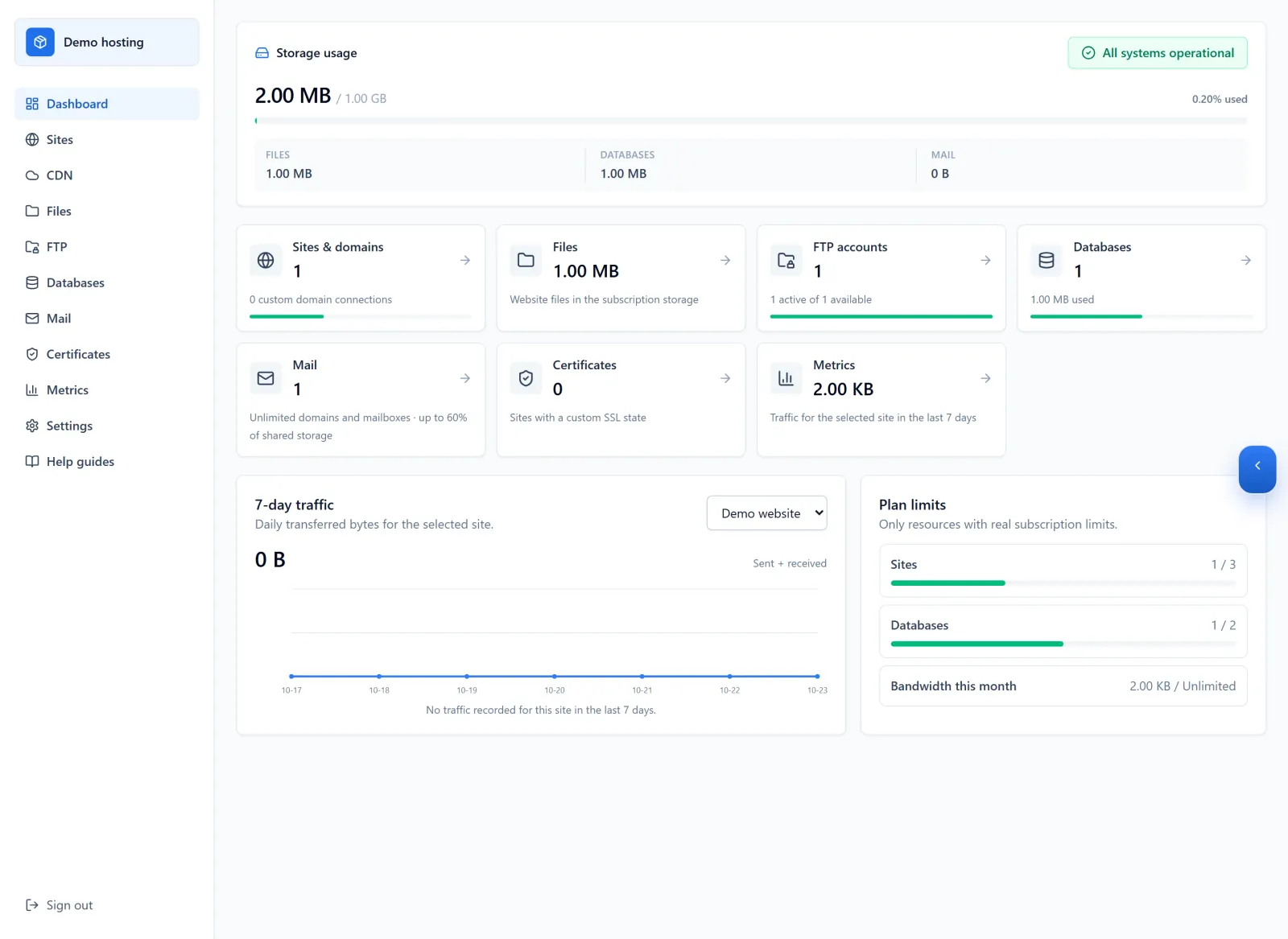
Figure 1: After checking service and billing status, review resource usage for the correct hosting subscription. This demo dashboard illustrates quotas; it does not replace checking the target site running state. View full-size image - For DNS or HTTPS errors, review routing, binding and certificate status for the hostname actually being visited.
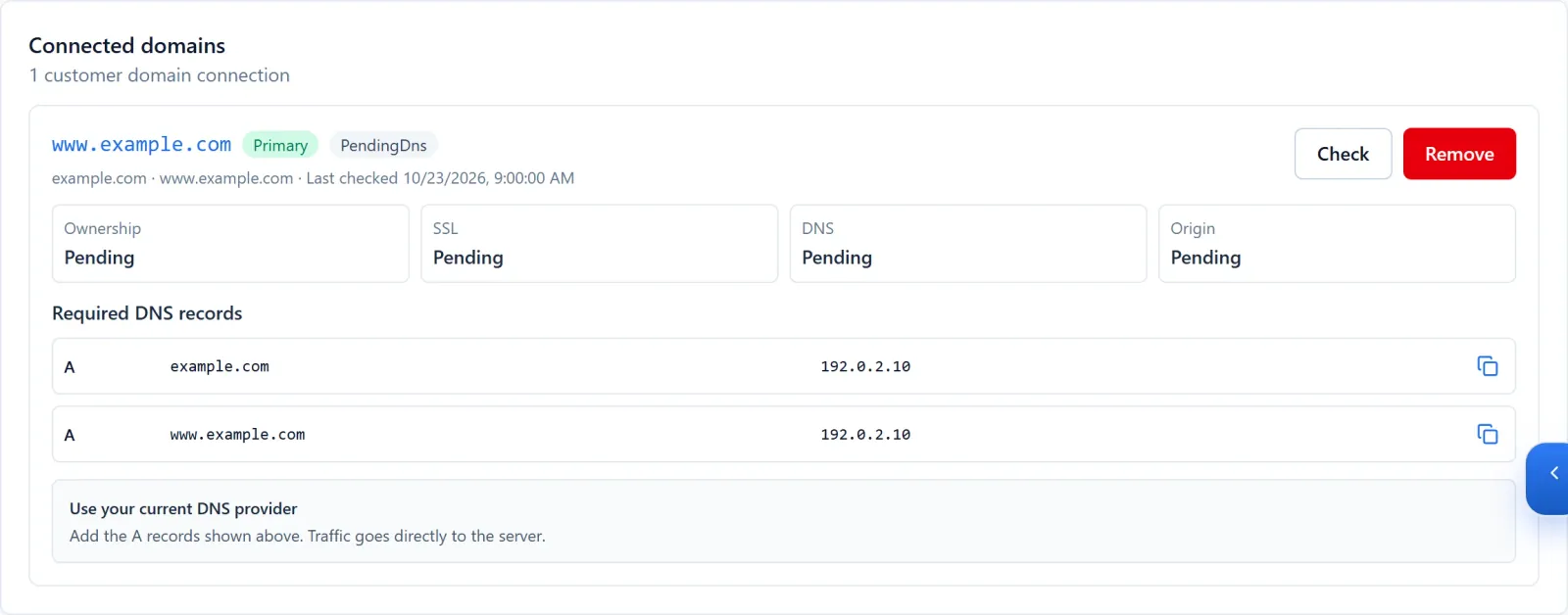
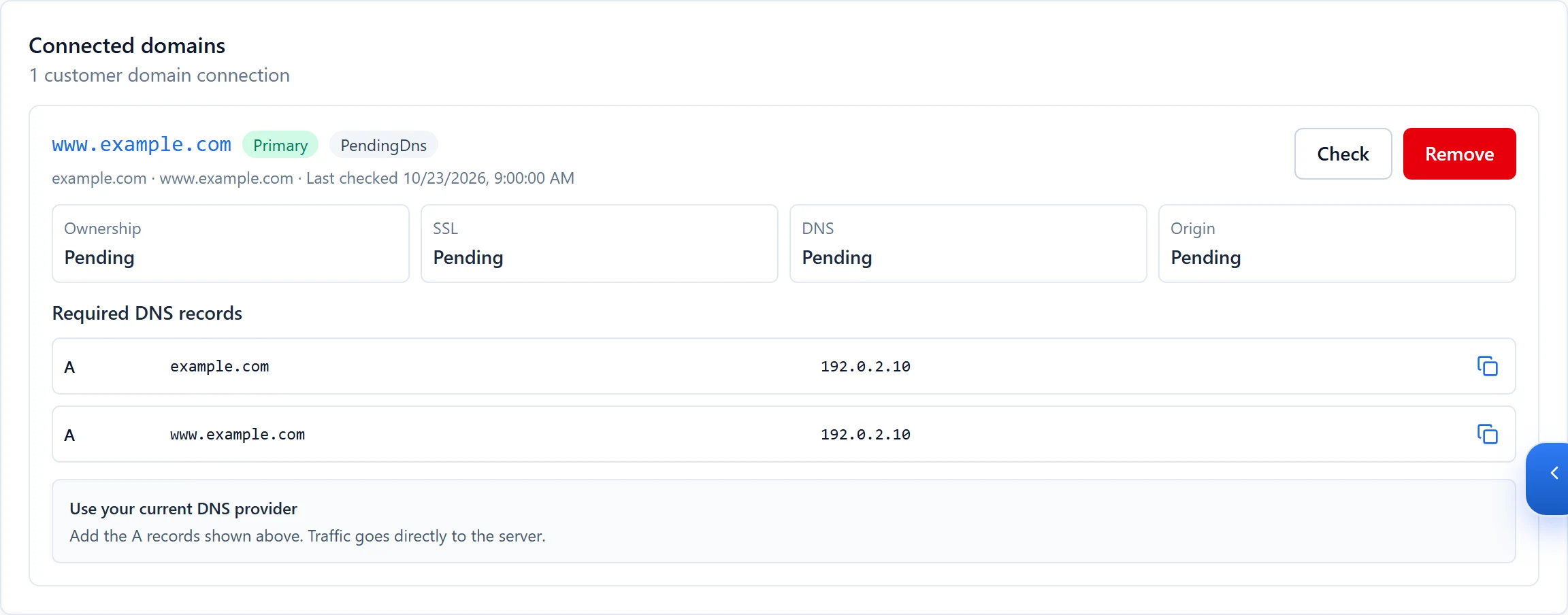
Figure 2: Check the hostname actually visited and distinguish DNS, SSL and origin states. The example.com names and 192.0.2.10 address are fictional examples, not your DNS target. View full-size image - For 404s, inspect directories and routes; for 502s or startup failures, inspect application and release logs. Investigate database identity and connectivity separately.

Figure 3: Inspect the relevant release logs to identify the failing stage before retrying. This is simulated demo output; use the actual error and timestamp from your own run. View full-size image

Check the result
- Retest the original URL, an internal page and a key business action. A working homepage alone does not prove forms, APIs and databases recovered.
If something goes wrong
- Retain errors and release references when contacting support, including whether one page, one site or several services are affected.
- Before restoring an old release, consider file, database and upload compatibility. Code rollback is not full data recovery.