上传网站文件并确认发布目录
分清源码、构建产物和网站目录,避免上传后仍出现默认页或 404。
适用范围适用于托管面板文件管理;需要服务端构建的项目也可使用 GitHub 部署。
本页目录
开始前准备
- 确认目标网站,备份将被覆盖的文件。静态项目准备可访问的构建产物,服务端项目先确认运行环境。
- 检查压缩包顶层目录:网站入口不能因为多套一层文件夹而落在错误位置。
操作步骤
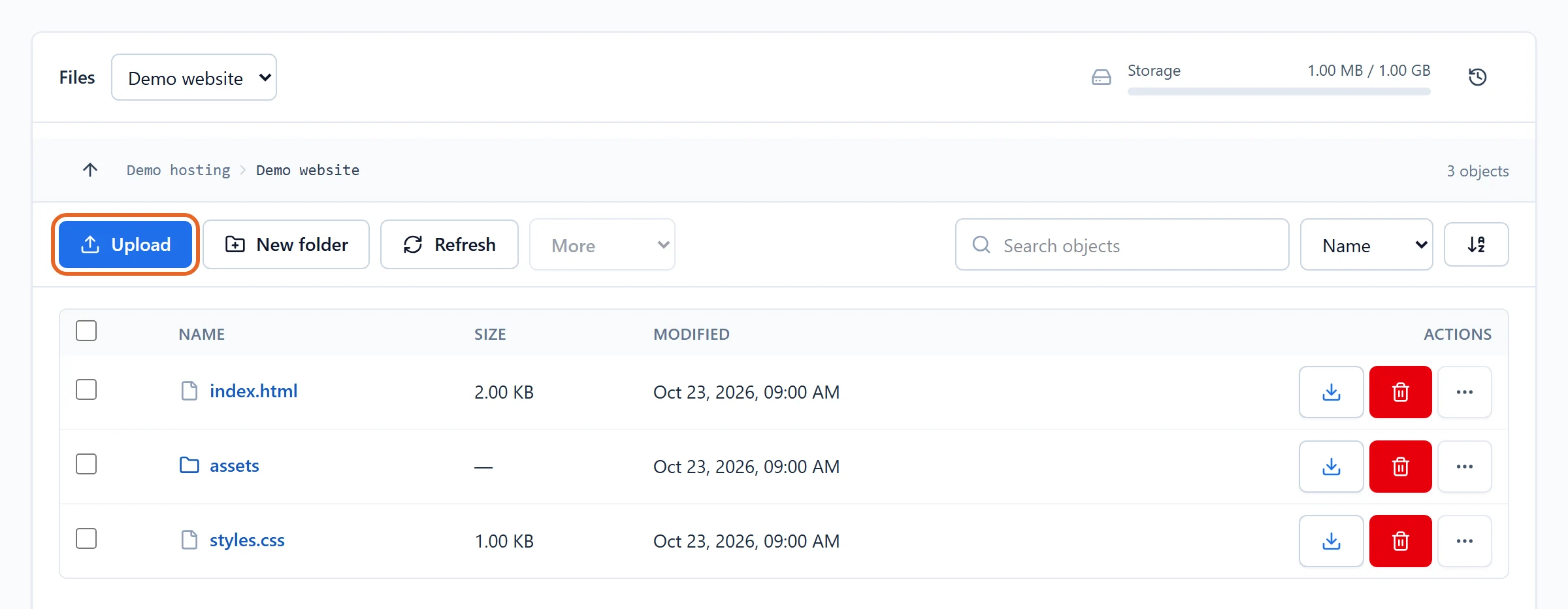
- 开通共享主机订阅后,在 NewCP 找到订阅对应的网站,选择 Manage(管理)→ Files(文件)。确认当前目录属于该网站。
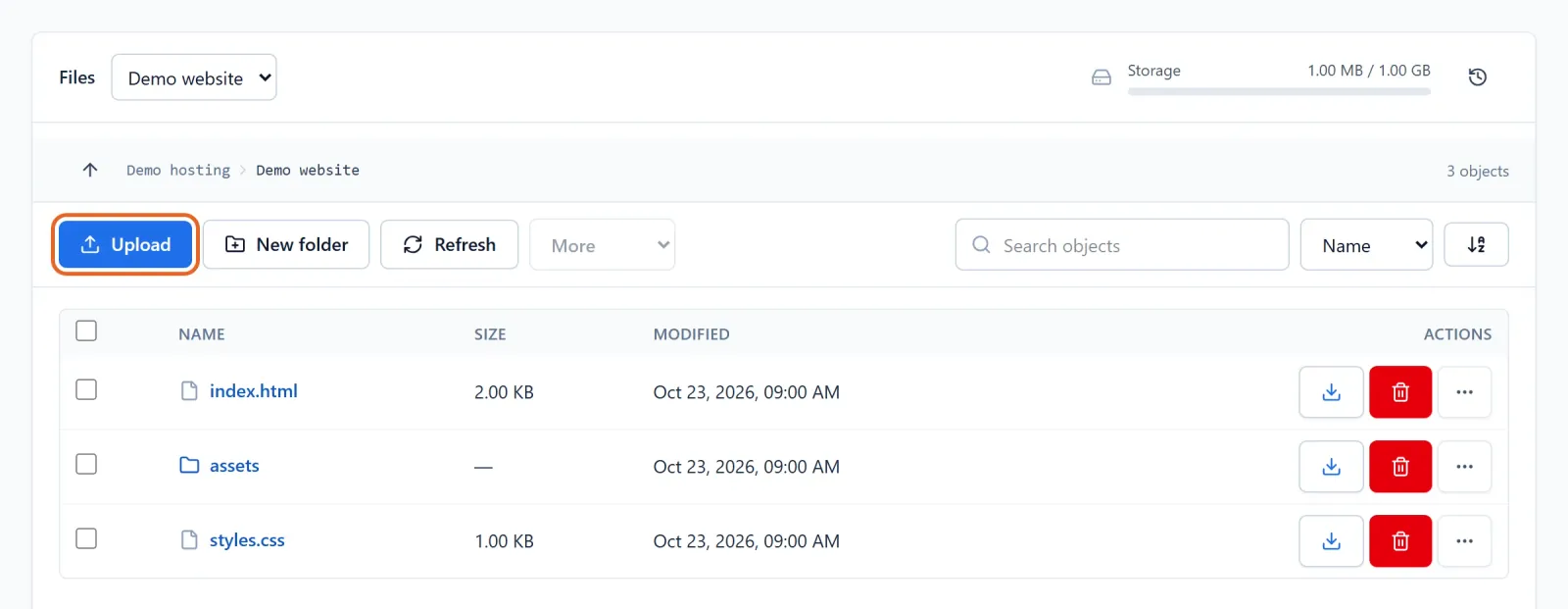
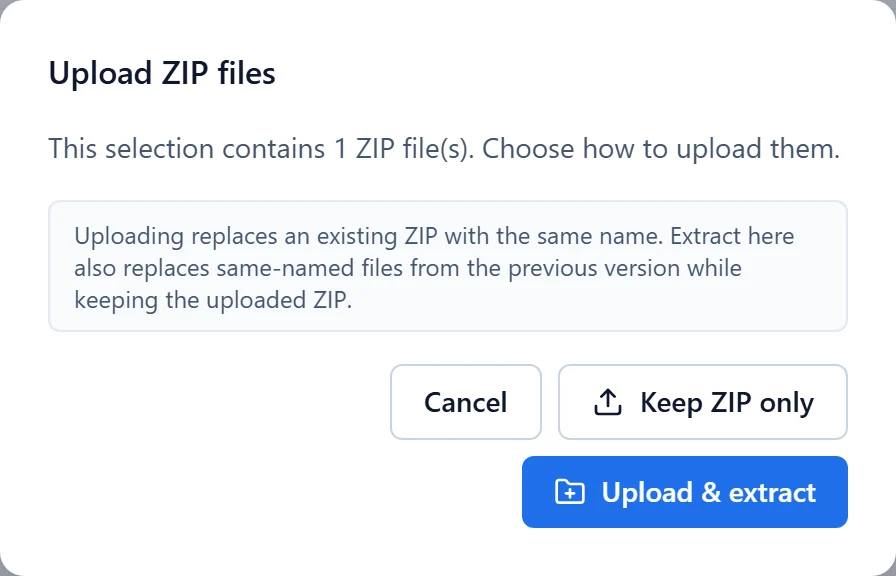
Figure 1: Verify the selected website and folder before using Upload. index.html and its assets are example release files; no live files changed. 查看原图 - 点击 Upload(上传)选择发布文件;文件夹先压缩为 ZIP。上传 ZIP 时按界面选择保留压缩包或解压,并核对目标目录与覆盖提示。
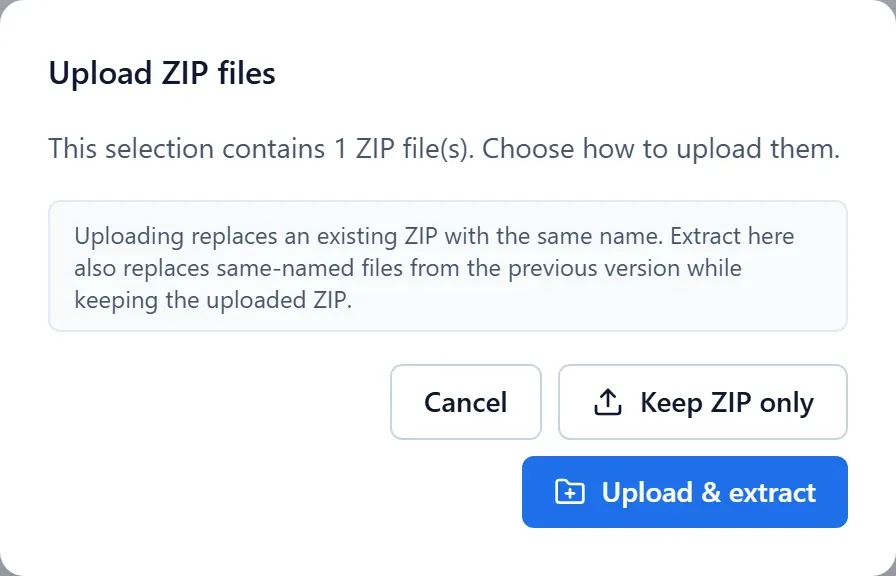
Figure 2: Review the ZIP keep-or-extract choice and destination before continuing. Demo archive selection; no upload or extraction performed. 查看原图 - 确认入口与静态资源位于项目要求的位置。不要将 .env、备份压缩包或包含密码的配置放在可公开下载的目录。
确认完成
- 通过公开网址访问入口和一个静态资源,再测试内部页面;不能只看文件列表中的上传成功。
遇到问题时
- 出现默认页或 404 时检查域名对应的网站、发布目录、入口文件与大小写。
- 超出配额时查看文件与数据库占用,不要反复上传同一压缩包。覆盖失误先停止继续写入并联系支持评估恢复。